
The Application Templates tool allows the user to customize the settings of the application template(s).
-
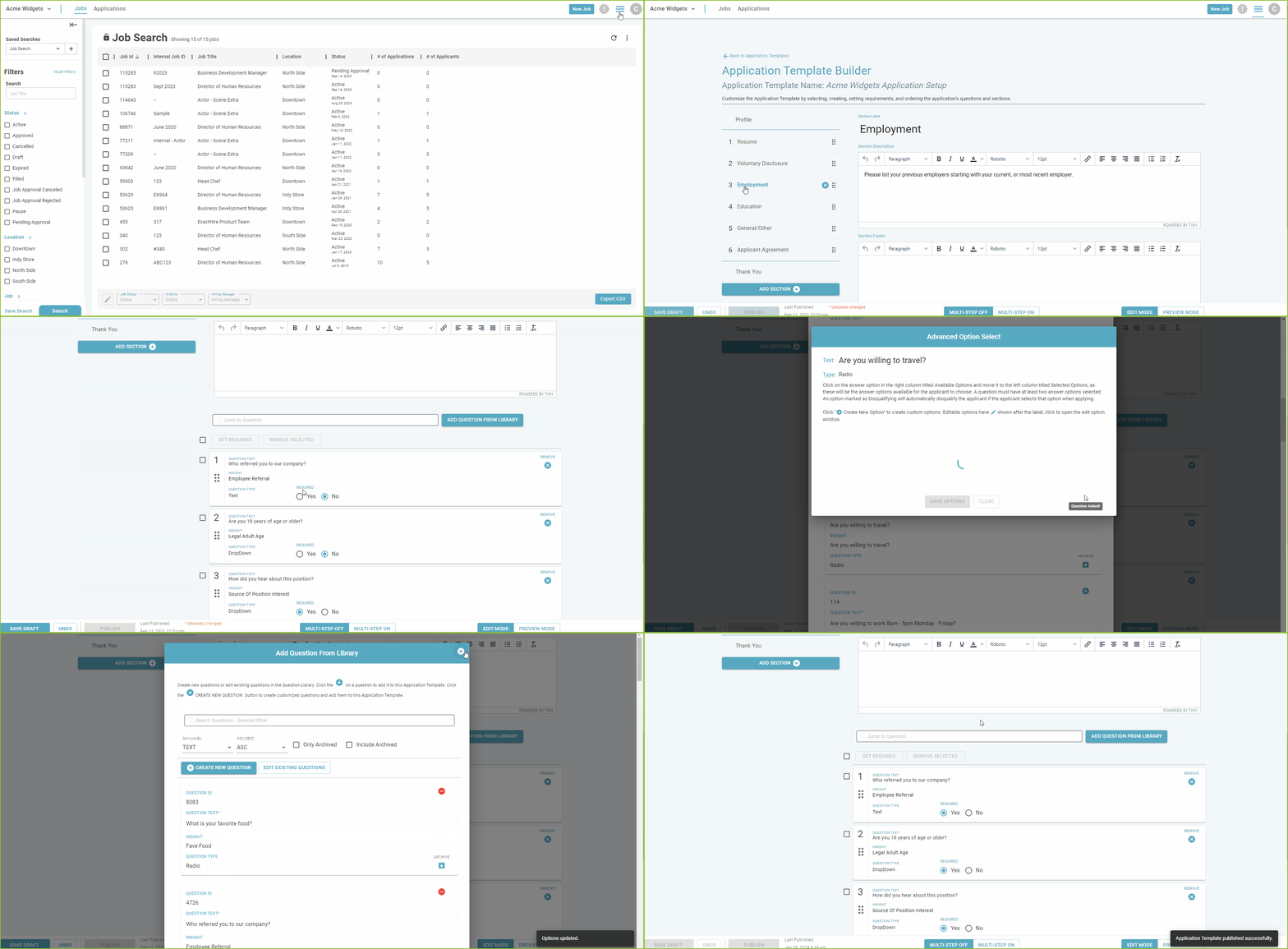
Find the Application Templates tool in the Settings area.

-
Click on Application Templates.
-
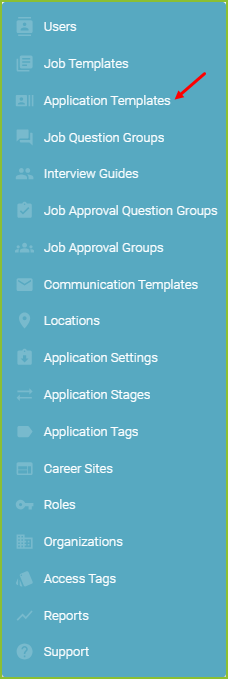
Click ? to access step by step instructions on working with Application Templates.
-
Click Manage Application Questions to create new questions or edit existing questions in the Question Library.
-
Click New Application Template to add a new application template.
-
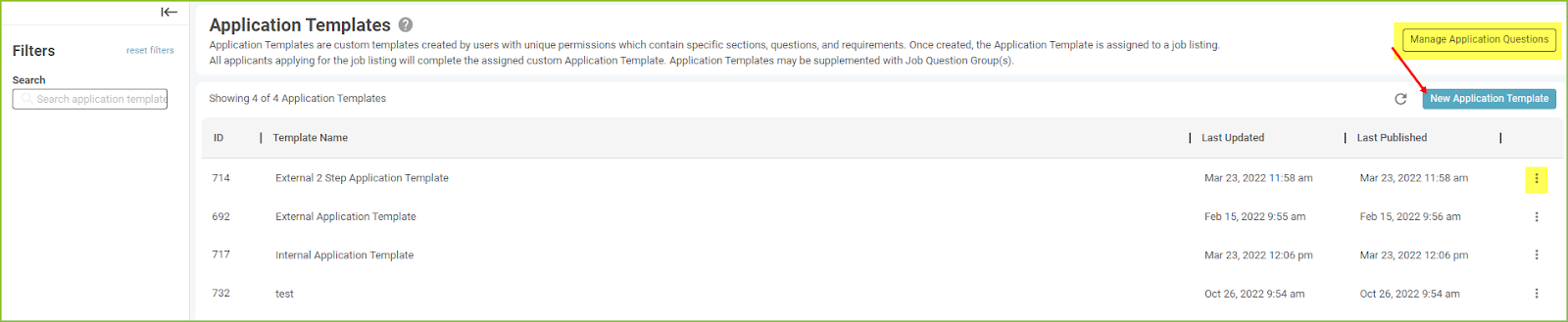
To edit an existing Application Template click the More Options icon on the far right.
-
Click on Go To Setup.
-
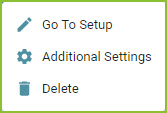
Once in the Setup area the user will be able to customize all areas of the application template.
-
-
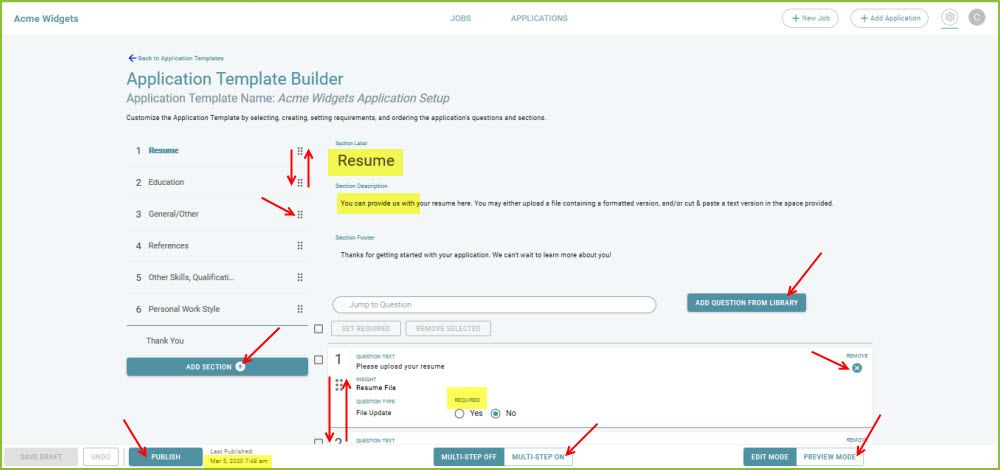
Reorganize application sections by dragging the section up or down the list.
-
Remove application sections by clicking the X related to that section.
-
Add application sections by using the Add Section + button.
-
Adjust the description/instruction for the section by clicking into the description area.
-
Indicate how many entries are required, if applicable, by clicking into the field.
-
Add a question to the section with the Add Question From Library button.
-
-
Existing questions may be edited and custom questions may be created within this area of the application template.
-
-
-
Reorganize the questions within the section by dragging the question up or down the list.
-
Indicate whether or not a response is required for the question with the yes/no toggle.
-
Remove a question from the section by using the X related to that question.
-
Turn Multi-Step Application ON to allow the application template to be separated into steps.
-
Preview the application template (applicant point of view) by using the Preview Mode button.
-
-
When clicking Preview Mode a draft will be saved. This is helpful when asking others on the team to preview the application template prior to publishing for use.
-
-
-
-
-
Save Draft allows for changes made to the Application Template to be saved prior to Publishing the changes.
-
-
-
Publish the application edits to be used moving forward with the Publish button. Notice the date stamp tracking the changes.
-
To edit the Indeed Short Application Settings for an existing Application Template click the More Options icon on the far right. Then Click on Additional Settings.
Still need help? Submit a support request and our team will get back to you.