
Users may want to take advantage of the ability to send customized communication to applicants who have completed an application and were automatically disqualified based on response.
Please contact support@exacthire.com to activate the automatic disqualification notice feature for your organization.
Once the automatic disqualification notice feature is active for your organization a user will activate the custom Auto-Disqualification Email message feature in the Communication Templates area. A new Communication Template will need to be created and associated with this activation.
Please note: By setting a communication template as the Auto-Disqualification Email message, all applicants who complete an application for any job and are automatically disqualified based on response will receive this message. If no communication template is selected, a default message is sent.
Auto-DQ Email feature on + application DQ based on submitted answer = associated communication template sent
-
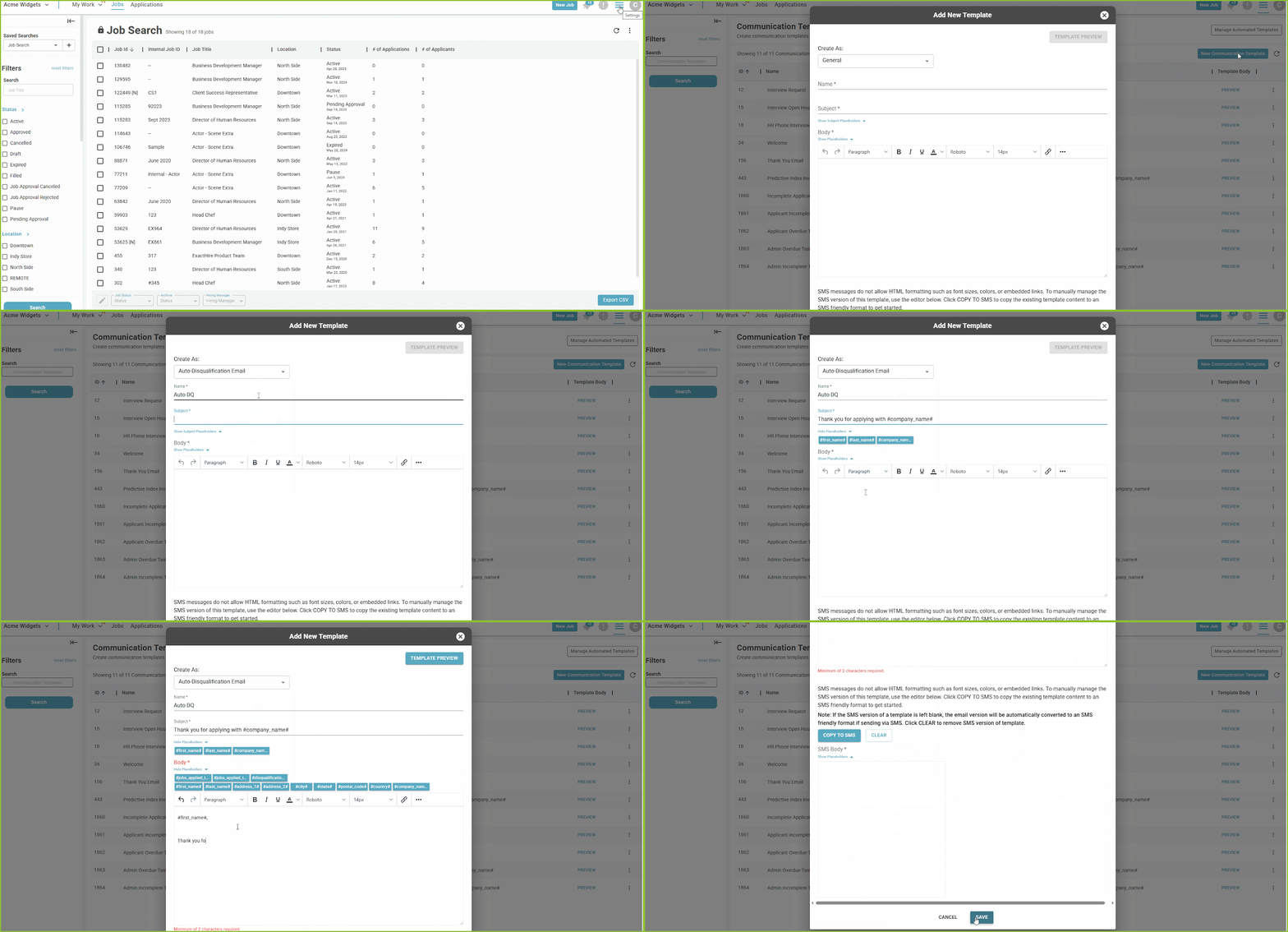
To create a new Communication Template for the Auto-Disqualification Email begin in the Settings area.

-
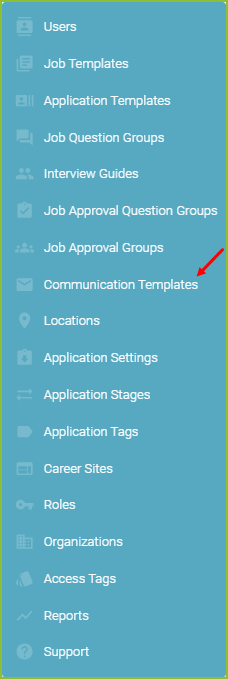
Click on Communication Templates.
-
Click New Communication Template to add a new Communication Template.
-
To use an existing Communication Template rather than create a new one, use the Manage Automated Templates tool, and select the appropriate template in the Auto-Disqualification Email area.
-

-
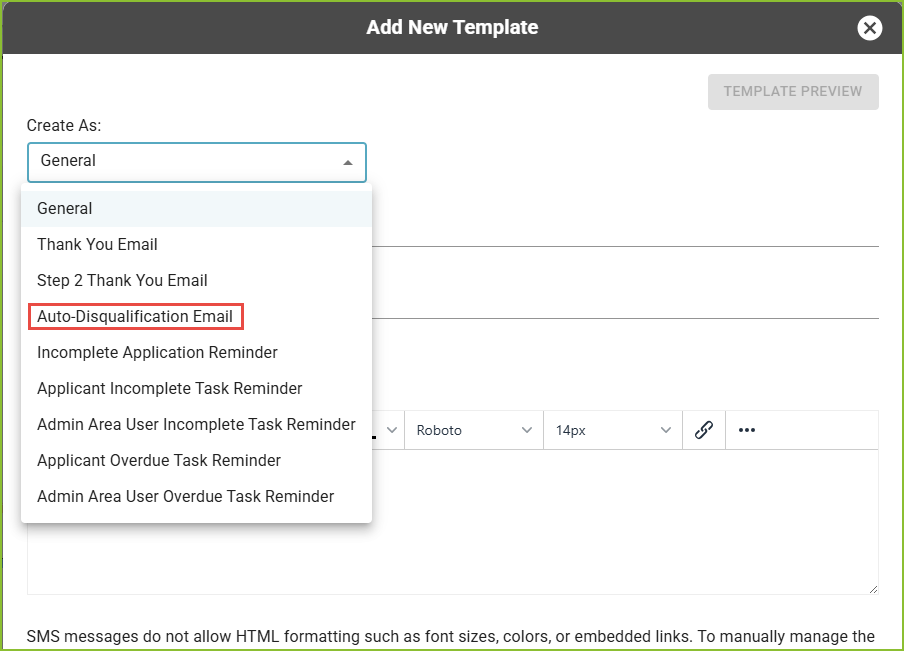
Select Auto-Disqualification Email in the Create As menu.
-
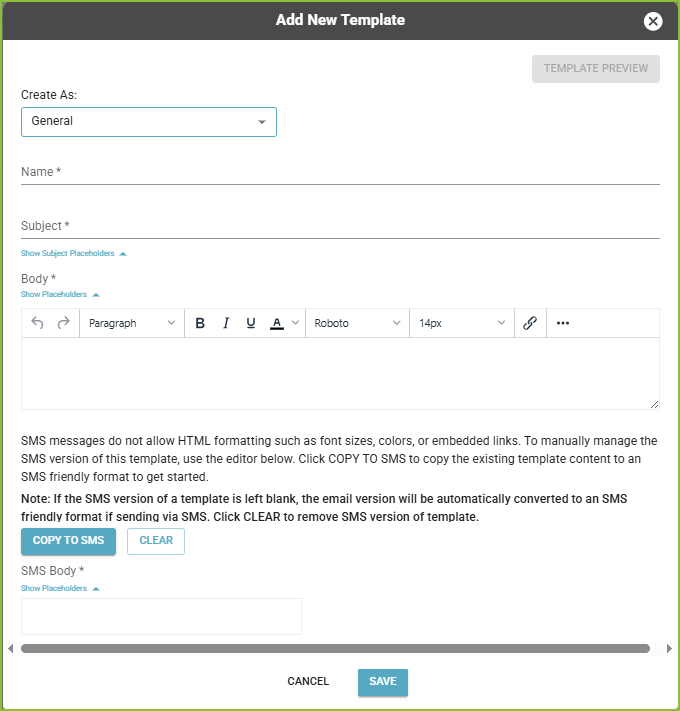
In the provided form enter the Communication Template Name (internal use), Email Subject, and body of the message into the appropriate fields.
-
Placeholders have been provided for use in customizing the emails to the recipient using applicant data. Click on the desired Placeholder in the subject line and/or body of the message.
-
Use the available text formatting tools provided, as needed.
-
-
Click SAVE.
-
Confirmation of the creation of the Auto-Disqualification Email Communication Template will appear on screen.
-

-
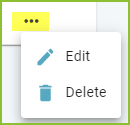
To Edit the Communication Template click the More Options button and EDIT.
-
To Delete the Communication Template click the More Options button and DELETE.
Still need help? Submit a support request and our team will get back to you.