
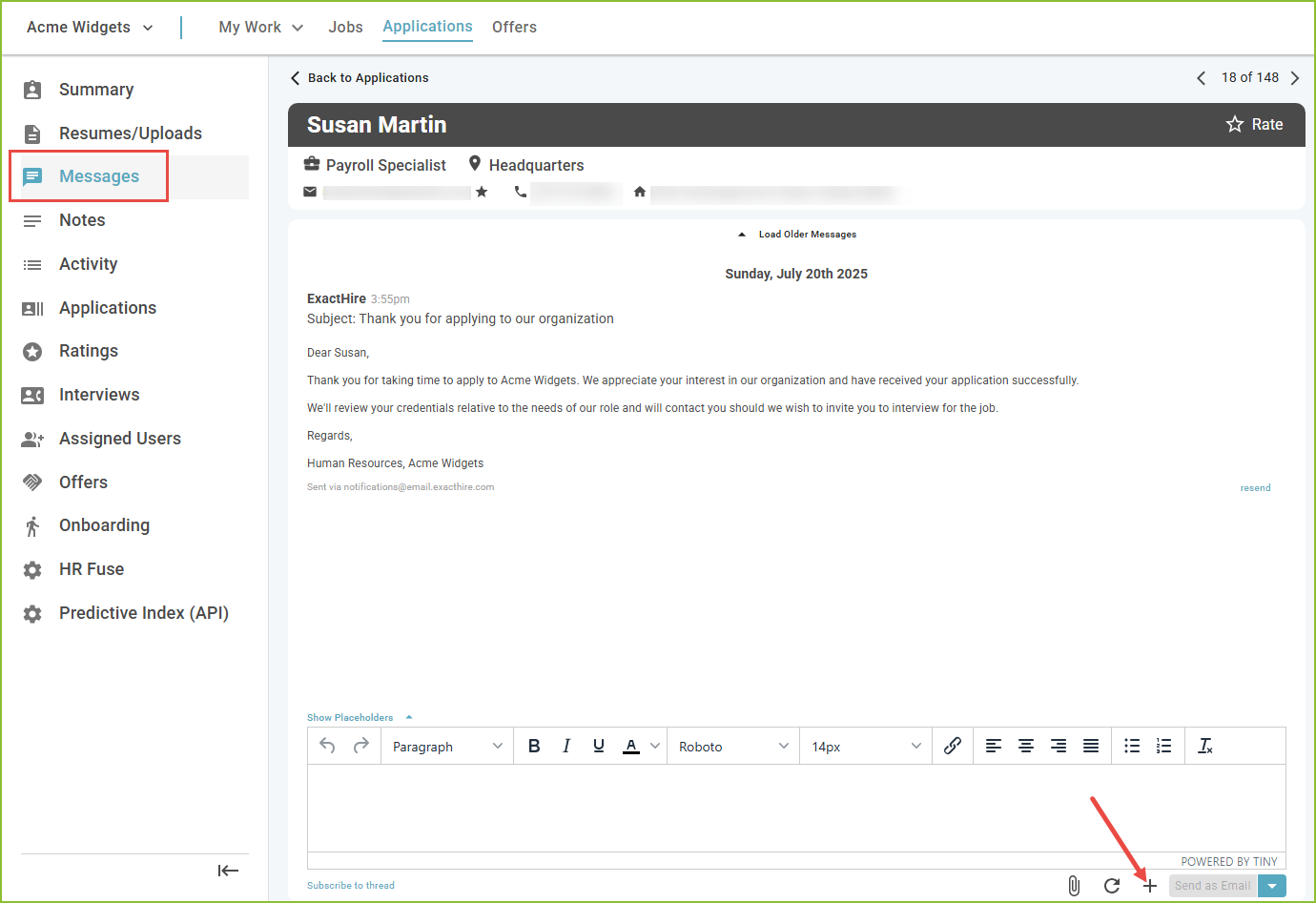
Users have the ability to send and receive communication with the applicant in the MESSAGES tab of the Application Detail.
Messages allows for sending/receiving of communication to/from the applicant through email or SMS message.
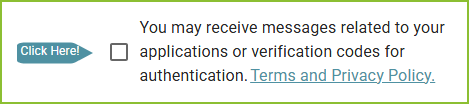
When applicants create their application, they have the ability to opt into receiving SMS messages about their submitted application. PLEASE NOTE: if the applicant does not opt into receiving SMS messages the feature will not be available for selection in the Messages.
-
Users may create a unique message in the Messages area or use a previously created Communication Template.
Create a Unique Message
-
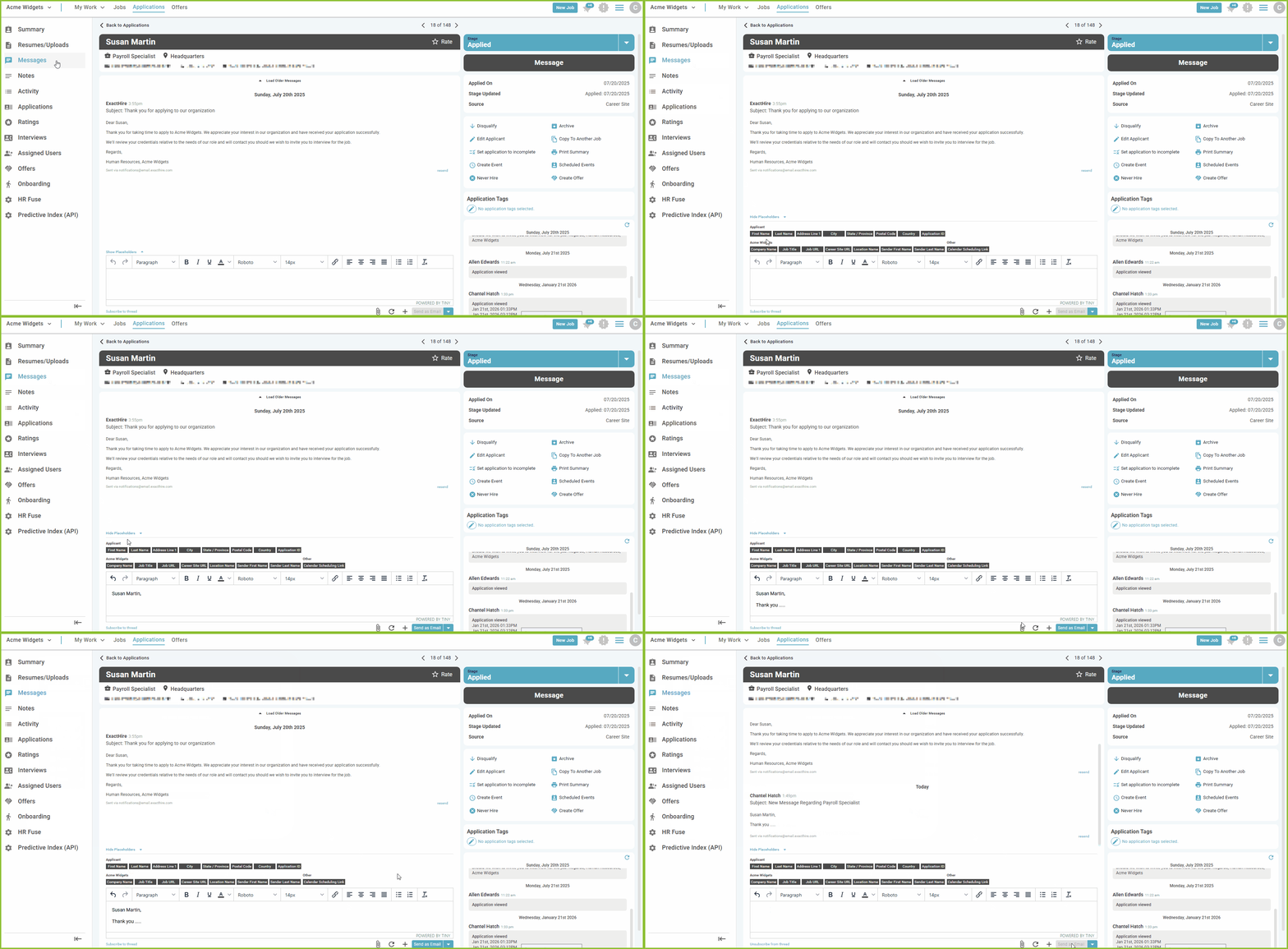
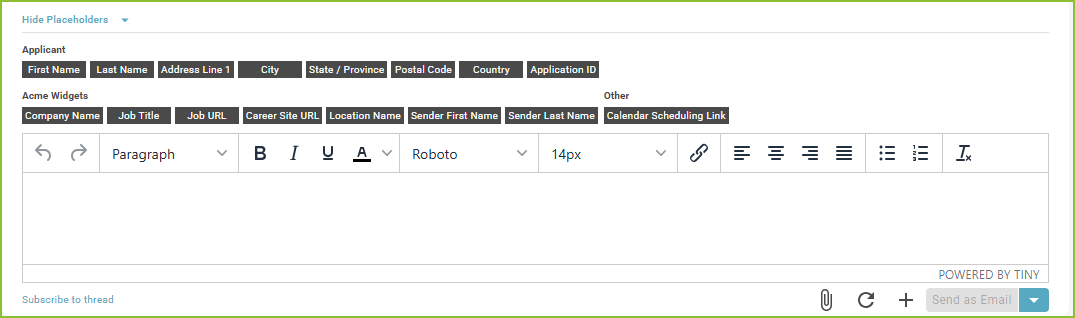
To create a unique message in the message box, use the Placeholders and formatting options provided. To use Placeholders click on the desired placeholder(s).
Create a Message using a Communication Template
-
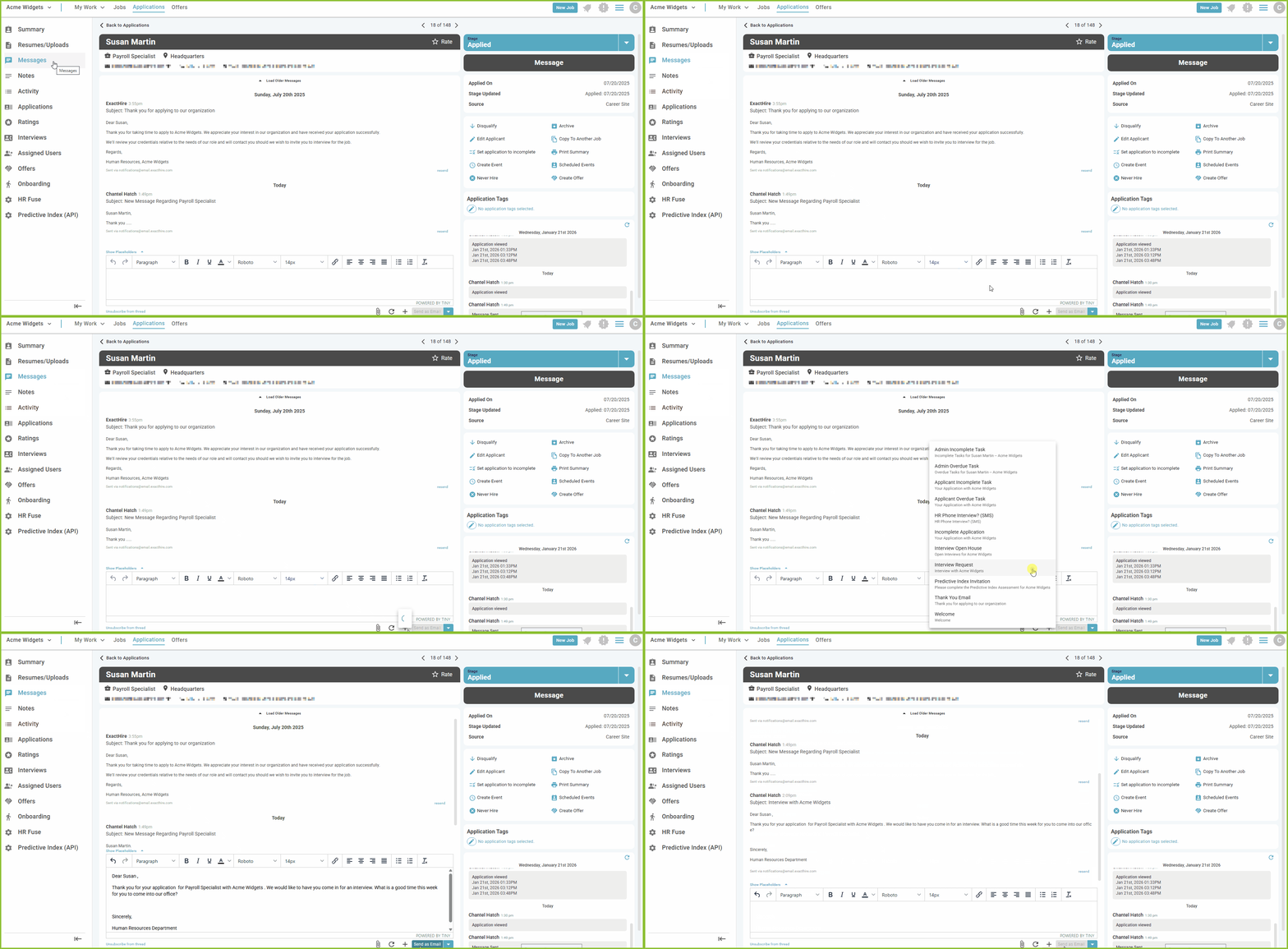
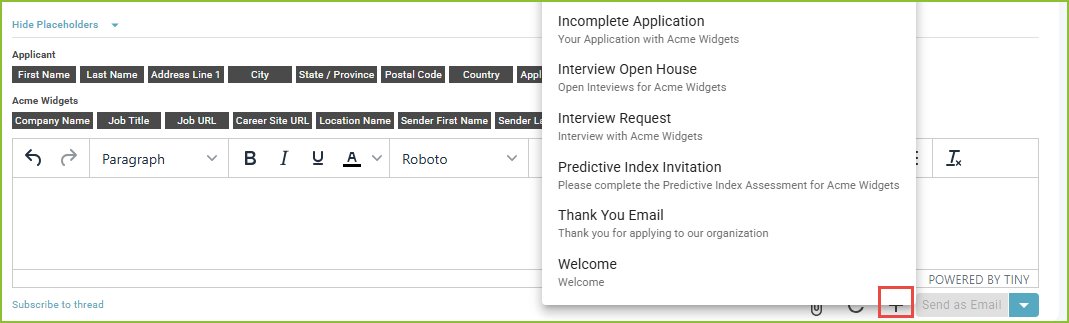
To create a message using a template, click Plus Icon. Select the previously created Communication Template by name and/or subject line.
-
Email messages may include attachments by using Upload Files. This will open a browse option allowing the user to select the needed document(s).

Send an SMS (Text) Message
-
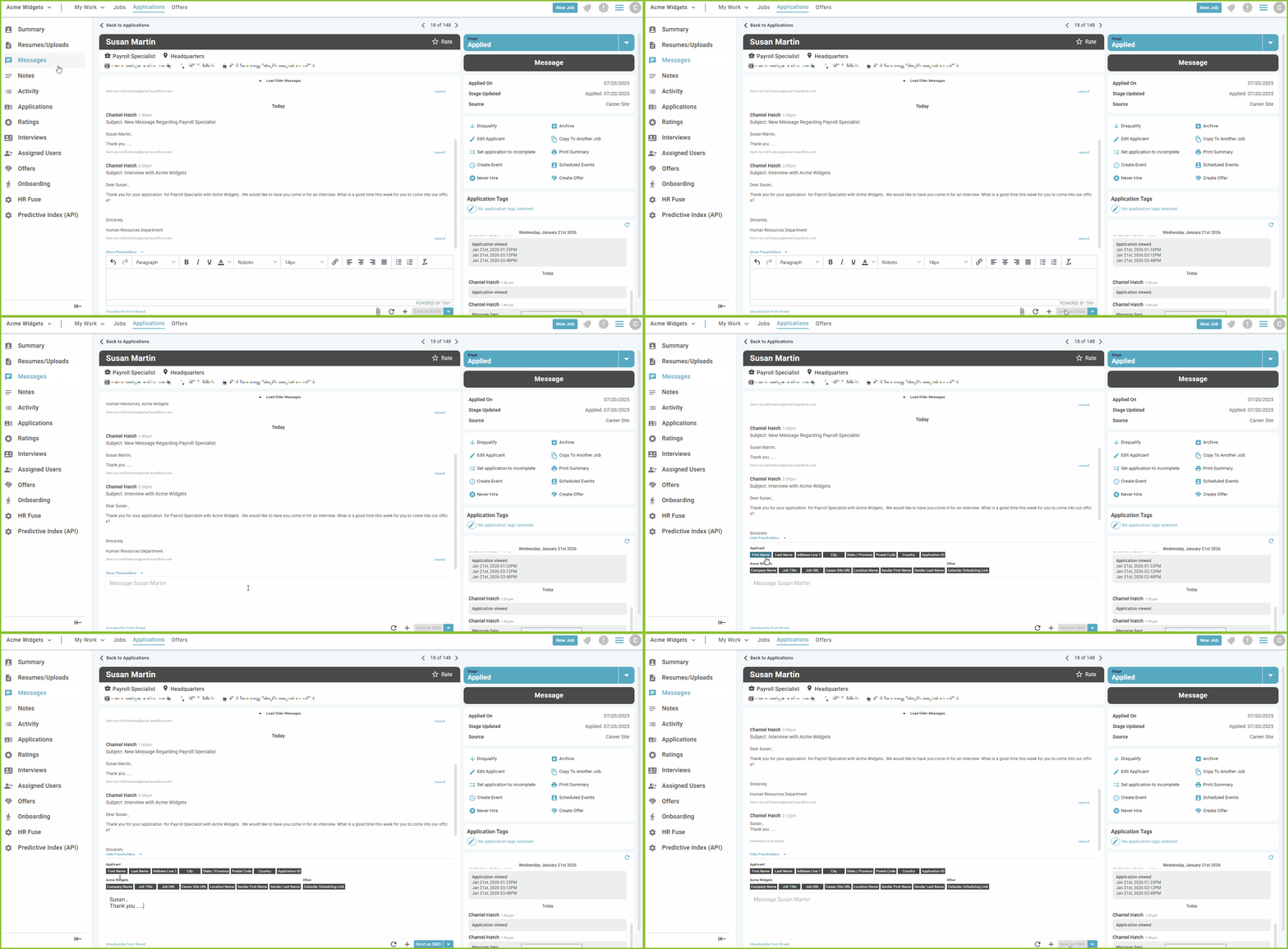
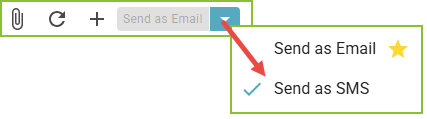
Use the down arrow to select Send as SMS to send the message to the applicant in an SMS (text message) format.
-
PLEASE NOTE: This option becomes available only if the applicant has elected to opt into receiving SMS messages during the application process.
-
Applicant Response
-
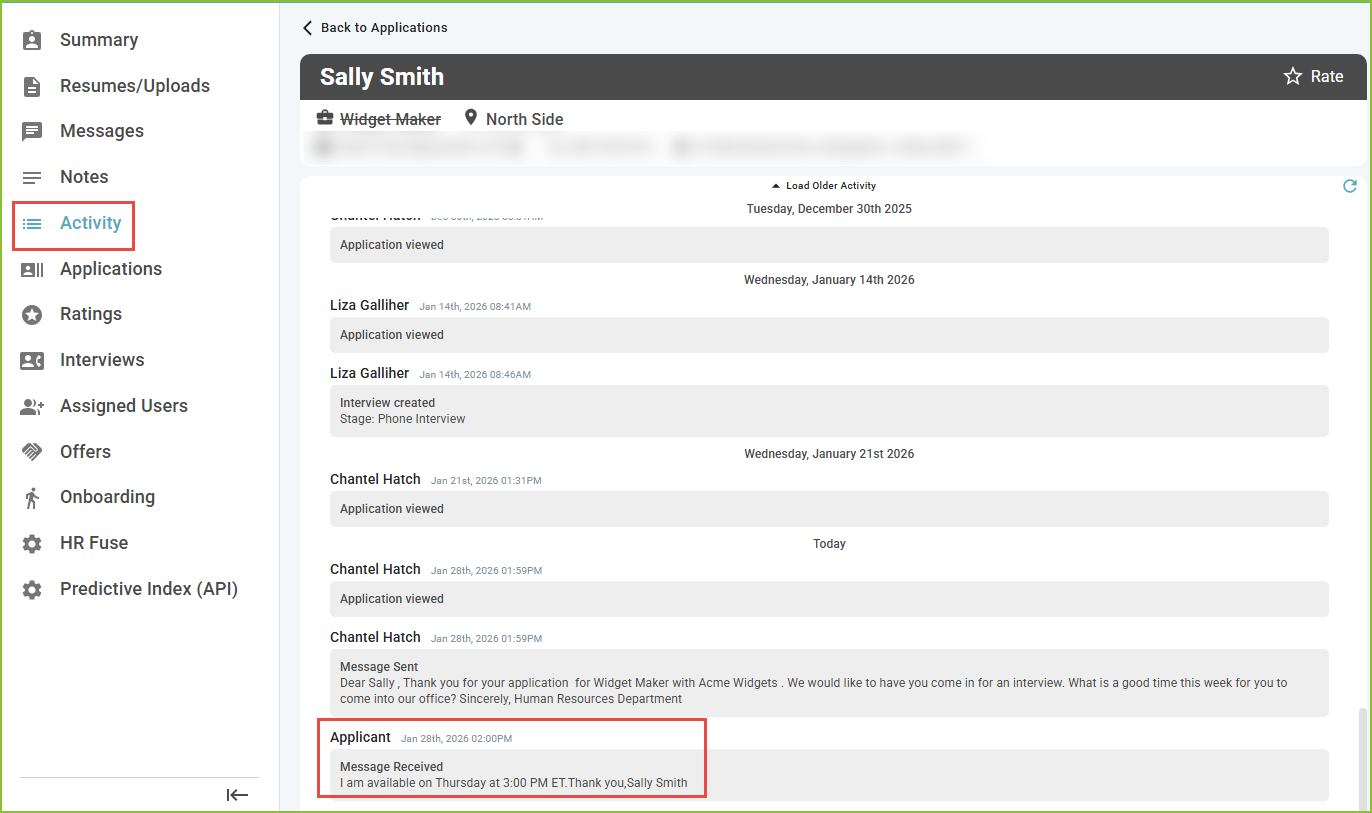
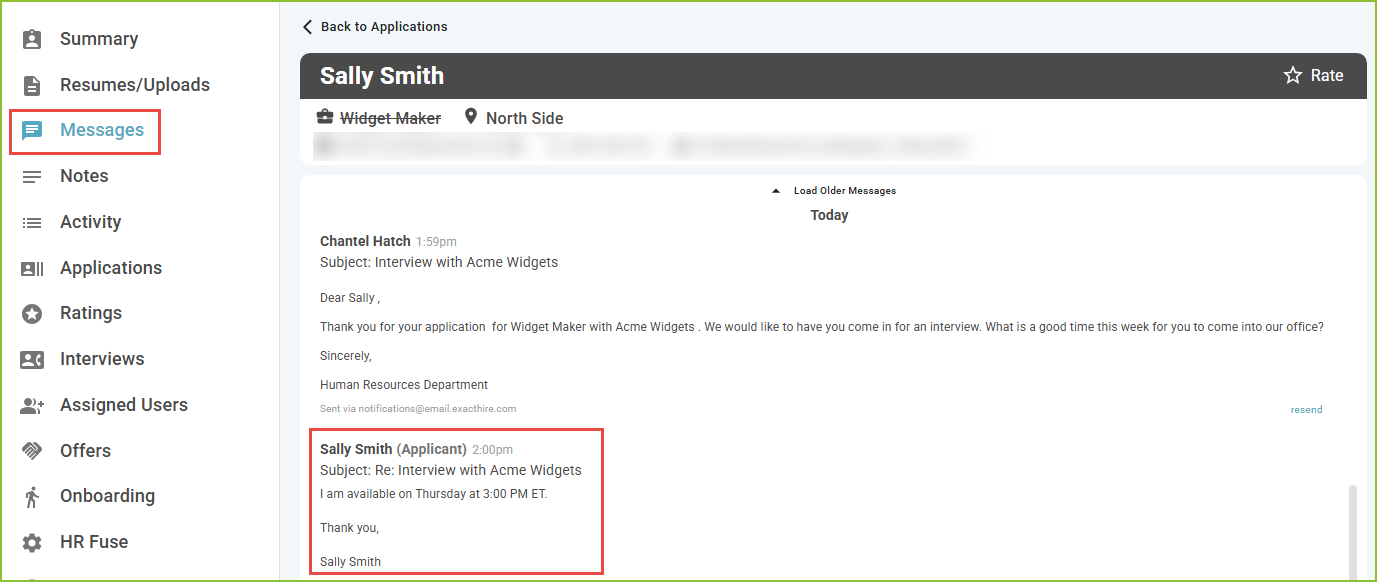
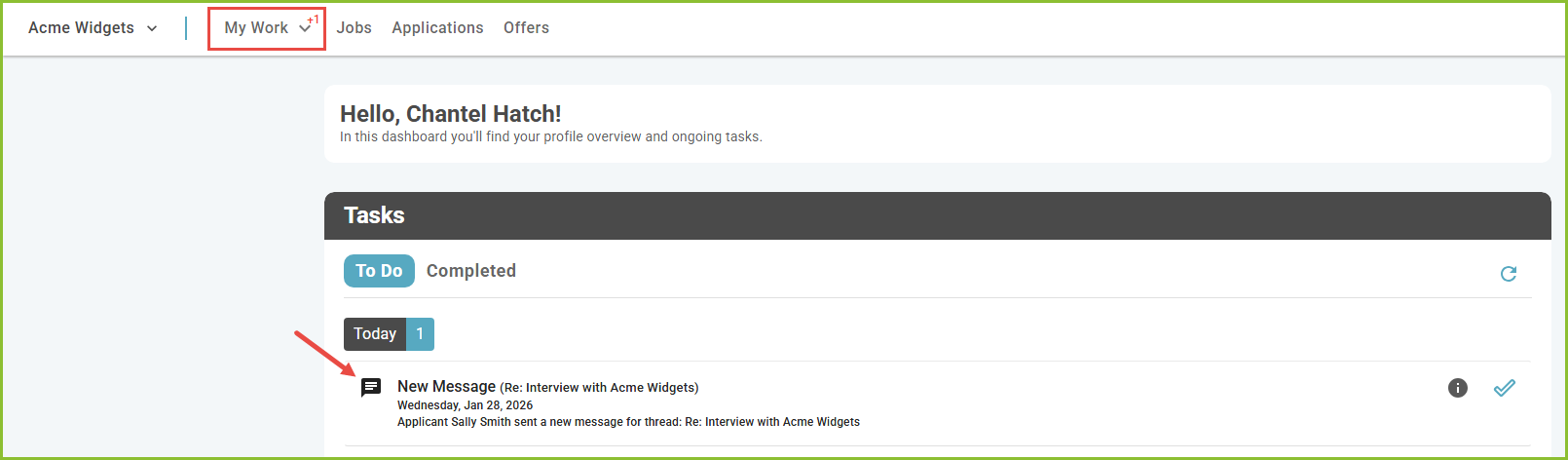
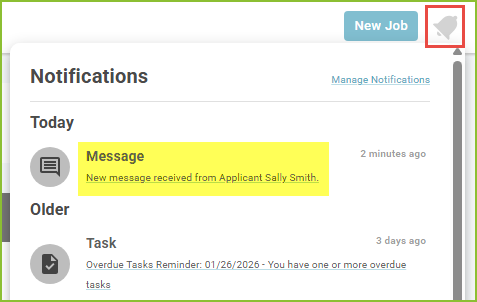
Applicants will have the ability to respond to the user through email and/or SMS Message. Responses from the applicant will be tracked chronologically on both the Activity and Messages tabs and the user who sent the message will receive system notifications.
Still need help? Submit a support request and our team will get back to you.