
Background checks through Checkr are available as an integration with the ExactHire ATS.
If you are interested in adding this feature please contact support@exacthire.com to have the integration activated and create your Checkr account within the ExactHire ATS.
ExactHire / Checkr Integration User Guide: https://help.checkr.com/s/article/ExactHire-Checkr-Integration-User-Guide
Requesting a Background Check
-
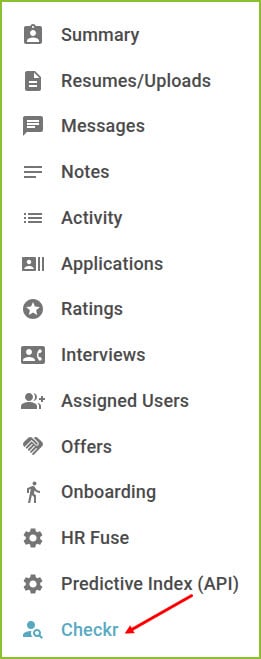
Once the Checkr background check integration is added to your platform and fully credentialed, you will see the Checkr option in the Application Details menu within a received application.
-
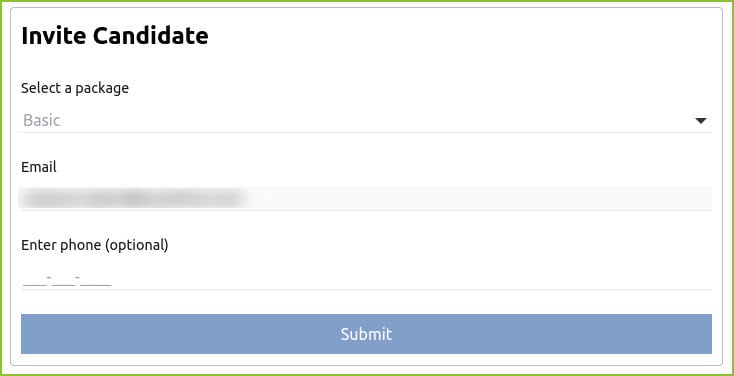
Use the Checkr option to initiate a background check by completing the Invite Candidate form.
-
The available background check options will appear in the Select a Package menu.
-
Click the Submit button. This will trigger an email to the applicant linking them to Checkr to complete their part of the background check.
-
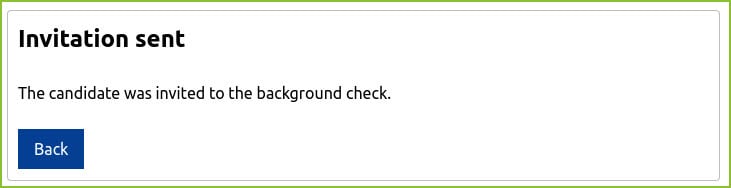
A confirmation will appear on screen.
Viewing Background Check Reports
NOTE: Checkr background checks are requested for the applicant not the specific application. The Reports Overview should load any report that exists for the applicant across many applications.
-
To view the completed Report Overview for the applicant, access the Application Detail for the applicant.
-
Open the Checkr area found in the Application Detail menu.
-
The Report Overview module will load and allow the user to view the Report Overview.
-
If no report(s) exist for the applicant the message “No background checks found” will be visible.
-

-
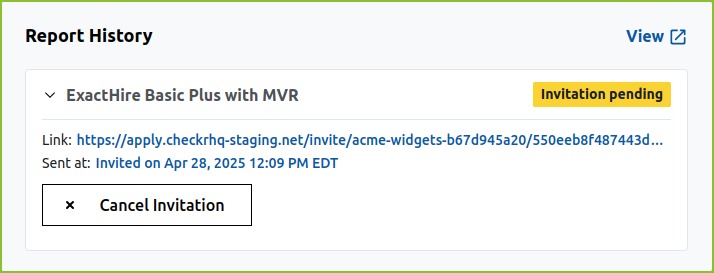
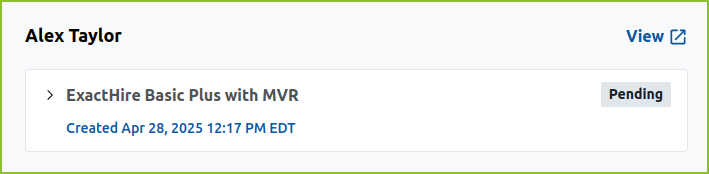
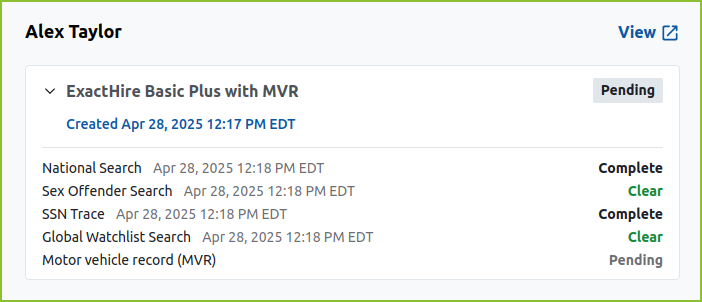
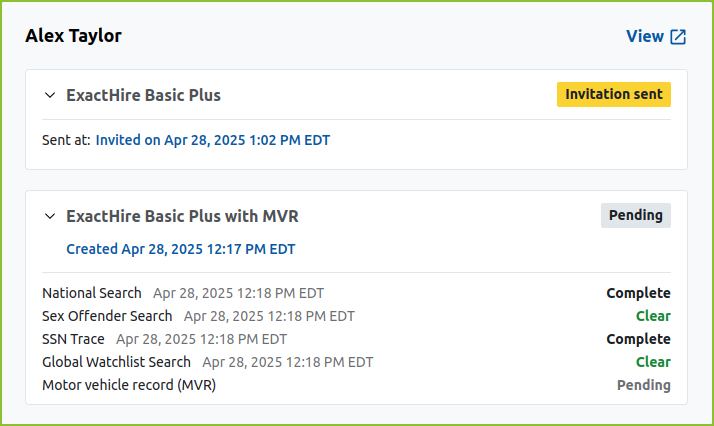
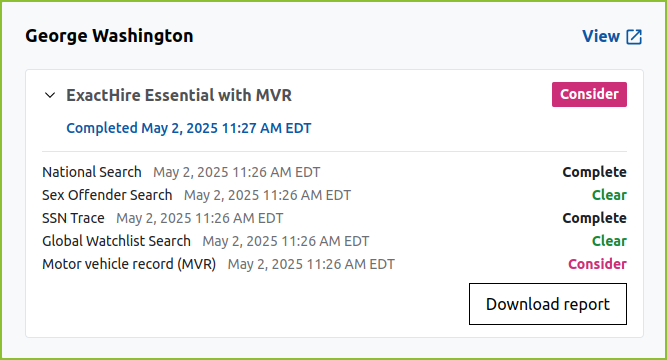
If report(s) do exist for the applicant the Report History module will load with an overview of the elements of the background check and their current statuses.
Examples:
-
Once the applicant completes their portion of the background check, Checkr will begin processing, which can take up to 5 - 7 days.
-
If an applicant has multiple reports, all will show within the Reports Overview.
-
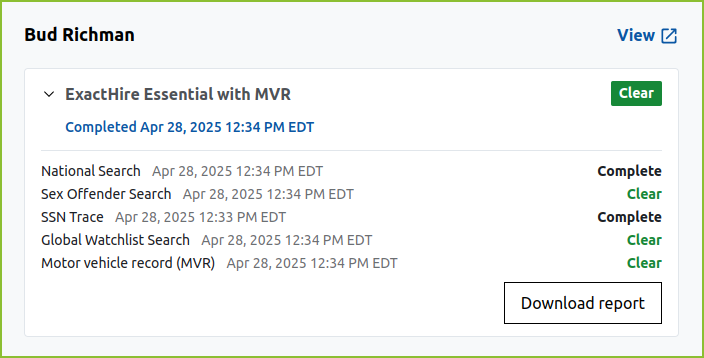
When the background check is fully completed the status will change from pending to a new status reflecting Checkr’s overall determination of the applicant.
-
More details about report statuses can be found in Checkr’s Help Center.
-
Examples:
-
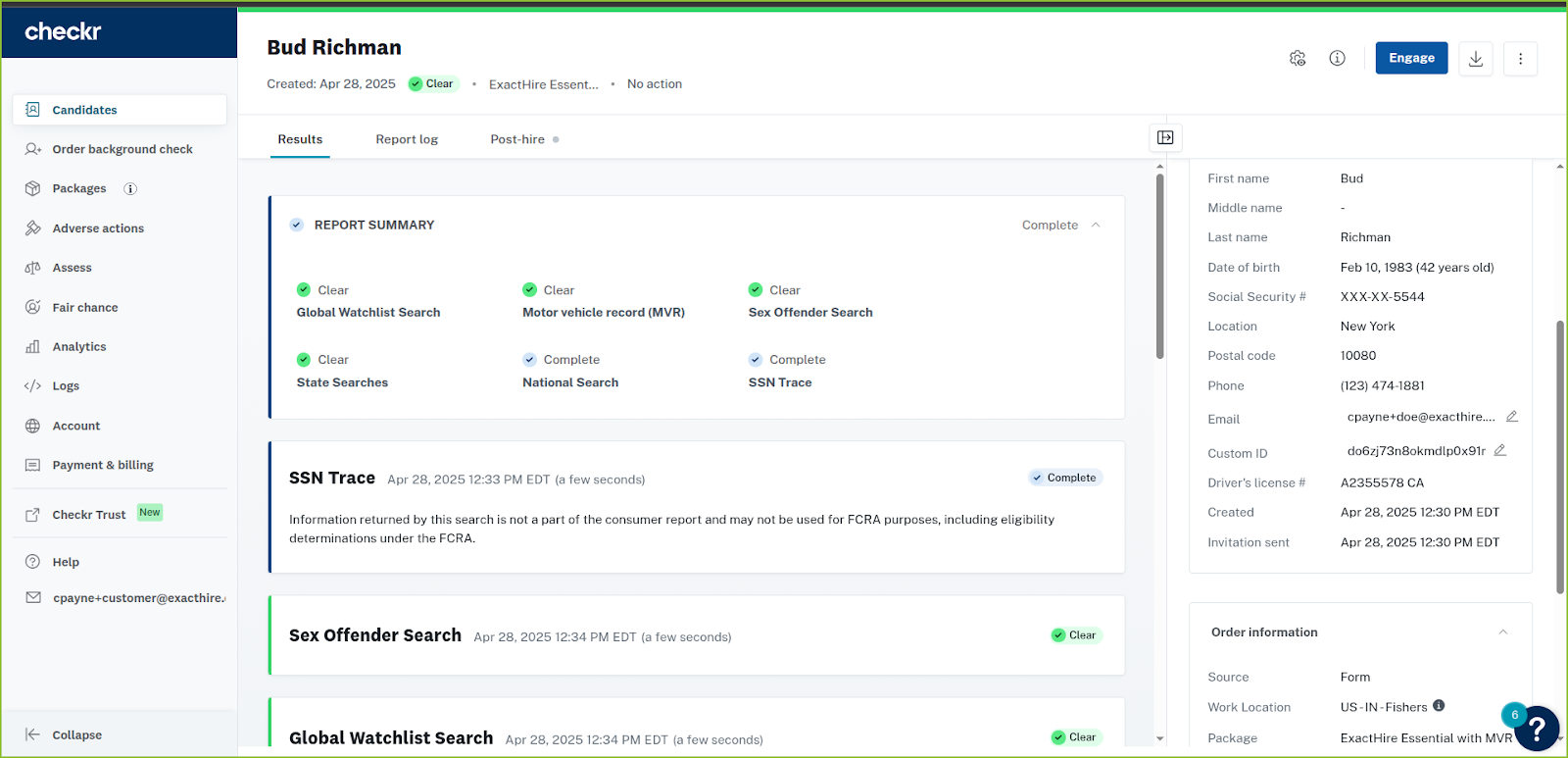
Click View to open the Checkr dashboard with the full details of the report.
-
Click Download report to download a copy of the full report.
Notification Preferences
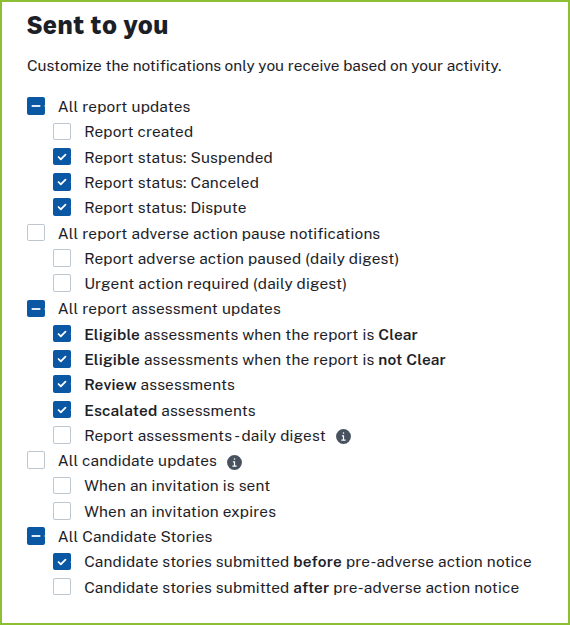
To enable email notifications, Checkr users may update their notification preferences from within the Checkr dashboard. These notifications are controlled by Checkr.
Still need help? Submit a support request and our team will get back to you.