
Background checks through Checkr are available as an integration with the ExactHire ATS.
If you are interested in adding this feature please contact support@exacthire.com to have the integration activated and create your Checkr account within the ExactHire ATS.
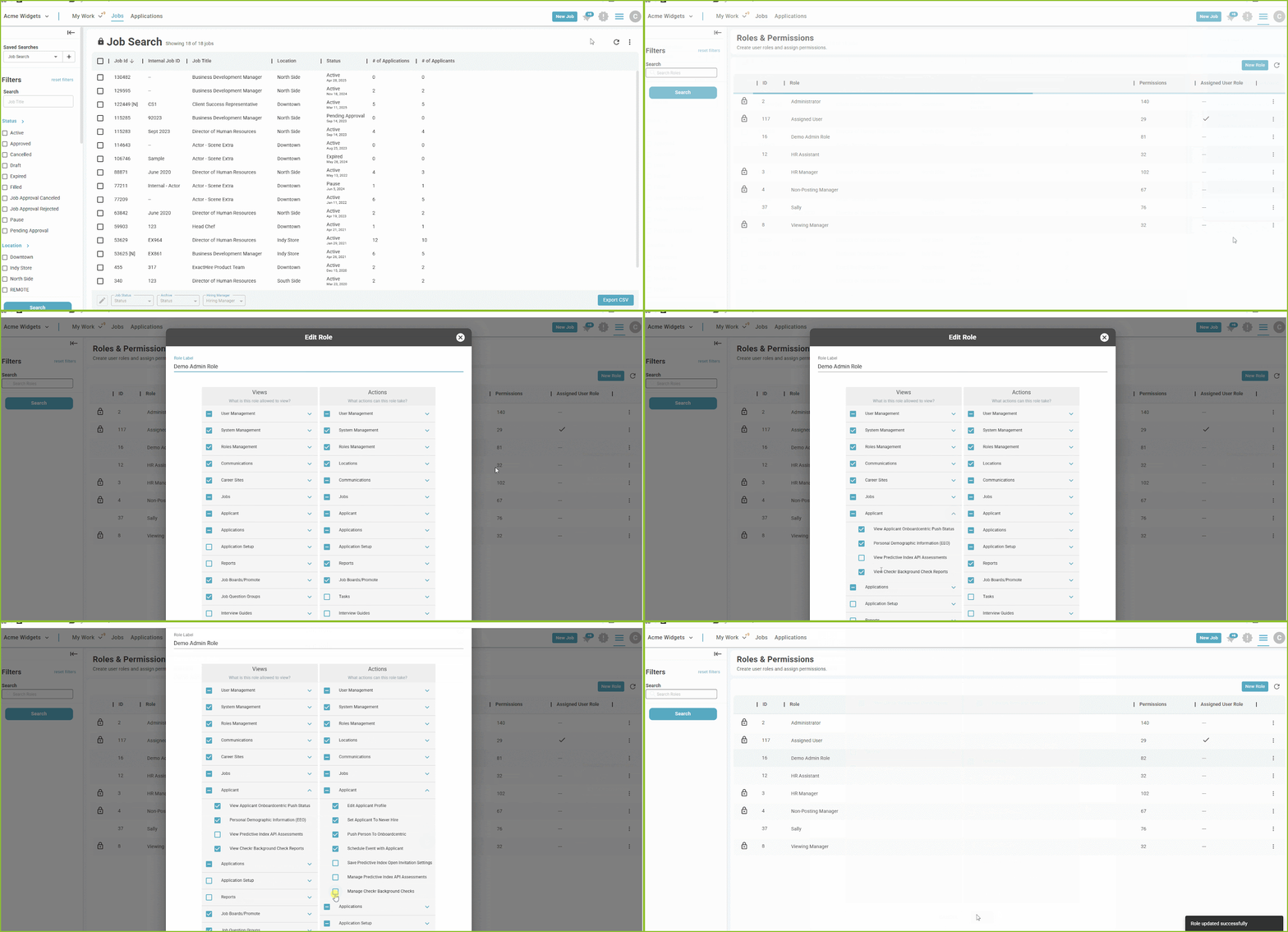
Once the Checkr background check integration is added to your ATS, permission must be assigned to User Roles to allow the user access to the integration.
-
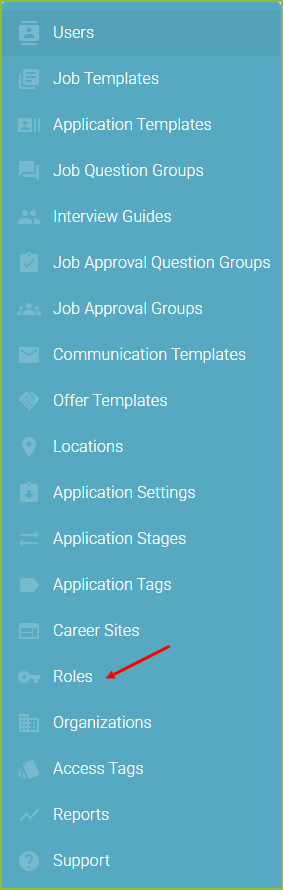
To add the Checkr permissions to a user role begin in the Settings area.

-
Click on Roles.
-
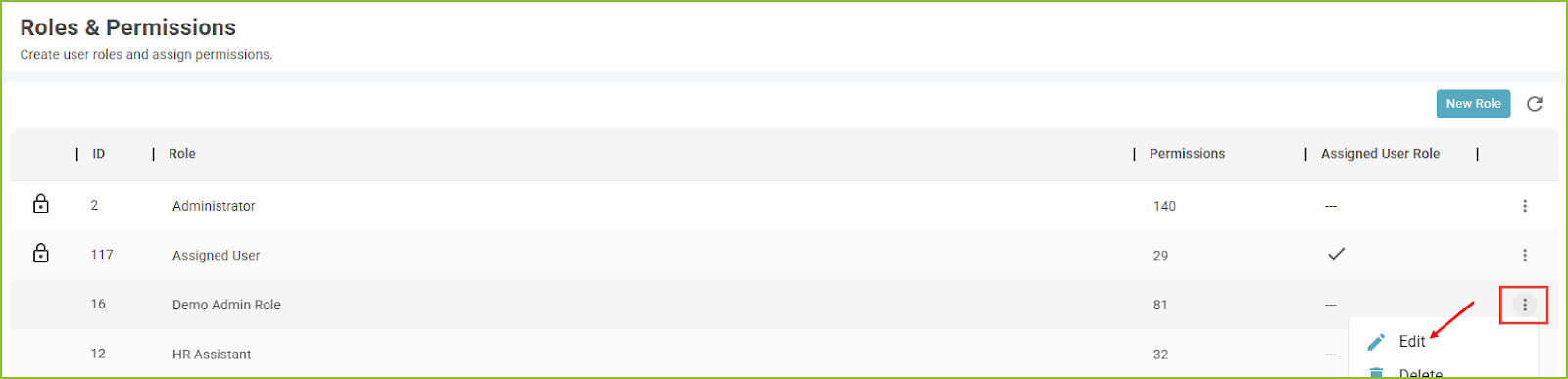
In the Roles area you may assign the Checkr permissions to selected Role(s).
-
Open the More Options menu and select Edit.
-
-
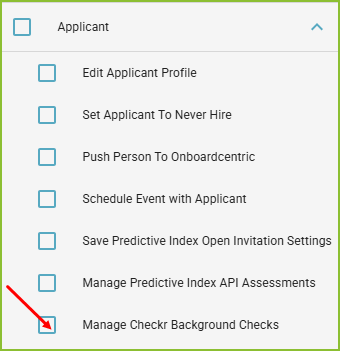
The Manage Checkr Background Checks permission is found in the Actions > Applicant section.
-
This permission allows a user full access to the Checkr integration. The user has access to request background checks and view report overviews.
-
-
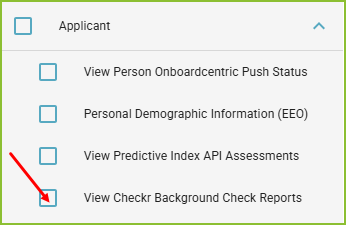
The View Checkr Background Check Reports permission is found in the Views > Applicant section.
-
This permission allows a user to view report overviews. Users with only this permission do not have the ability to request background checks from within the ATS.
-
-
Click Save.
NOTE: The permissions listed above control a user’s access to the Checkr integration within the ExactHire ATS. It is not required for a user to have a Checkr account in order to utilize the Checkr integration within the ATS. A Checkr account is only required in order to utilize the Checkr dashboard to view completed background check reports and to perform additional actions.
Still need help? Submit a support request and our team will get back to you.