
Indeed Sponsored Job Ad(s) may be requested on the PROMOTE tab of a job within the ExactHire ATS.
To utilize this feature please contact support@exacthire.com to set up the feature.
Please note that the Indeed account must contain credit card information in order to request sponsorship.
Create an Indeed Sponsorship Campaign
-
Once the Indeed Sponsored Job feature is active for the account, locate the job in the JOBS view by using the available filters.
-
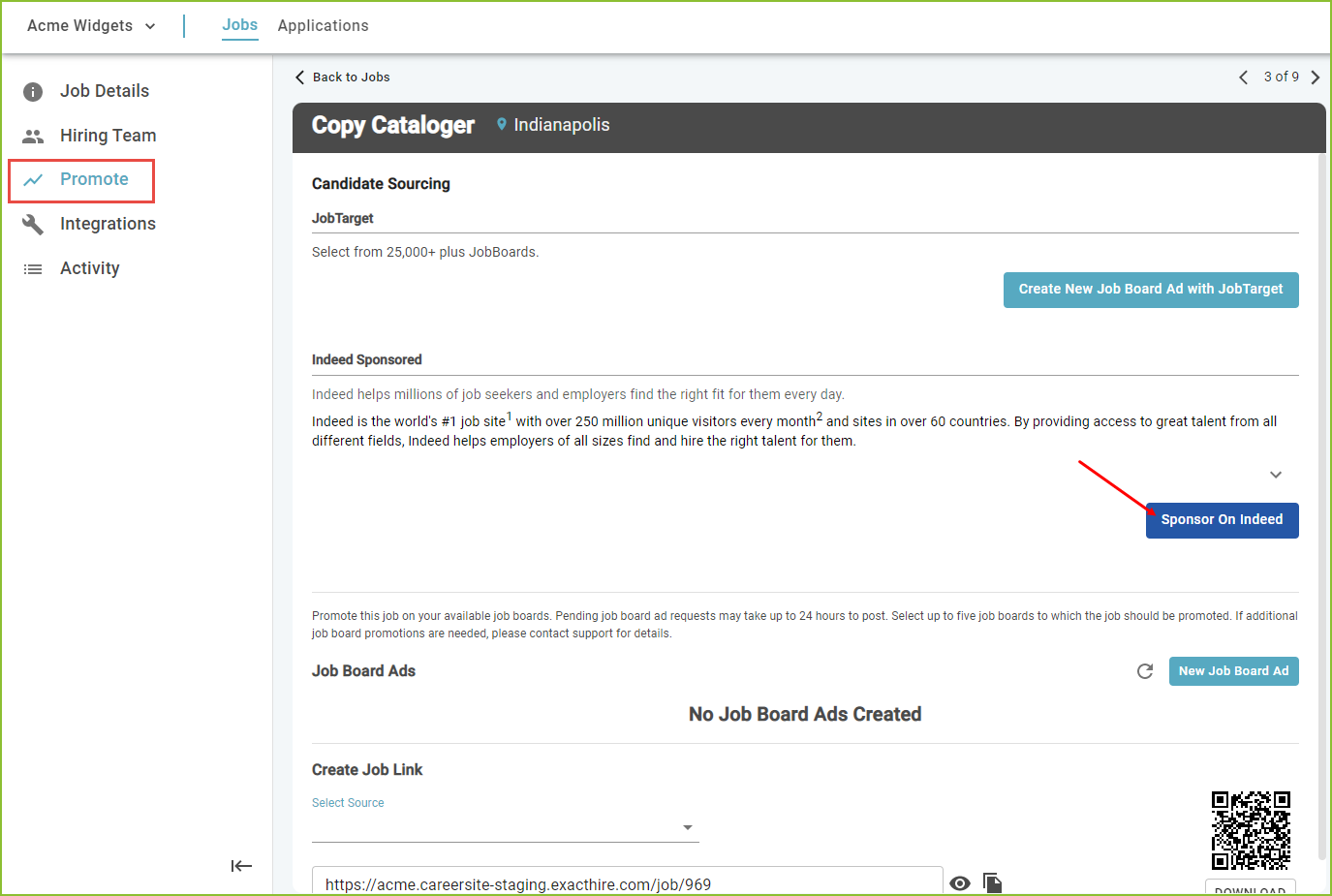
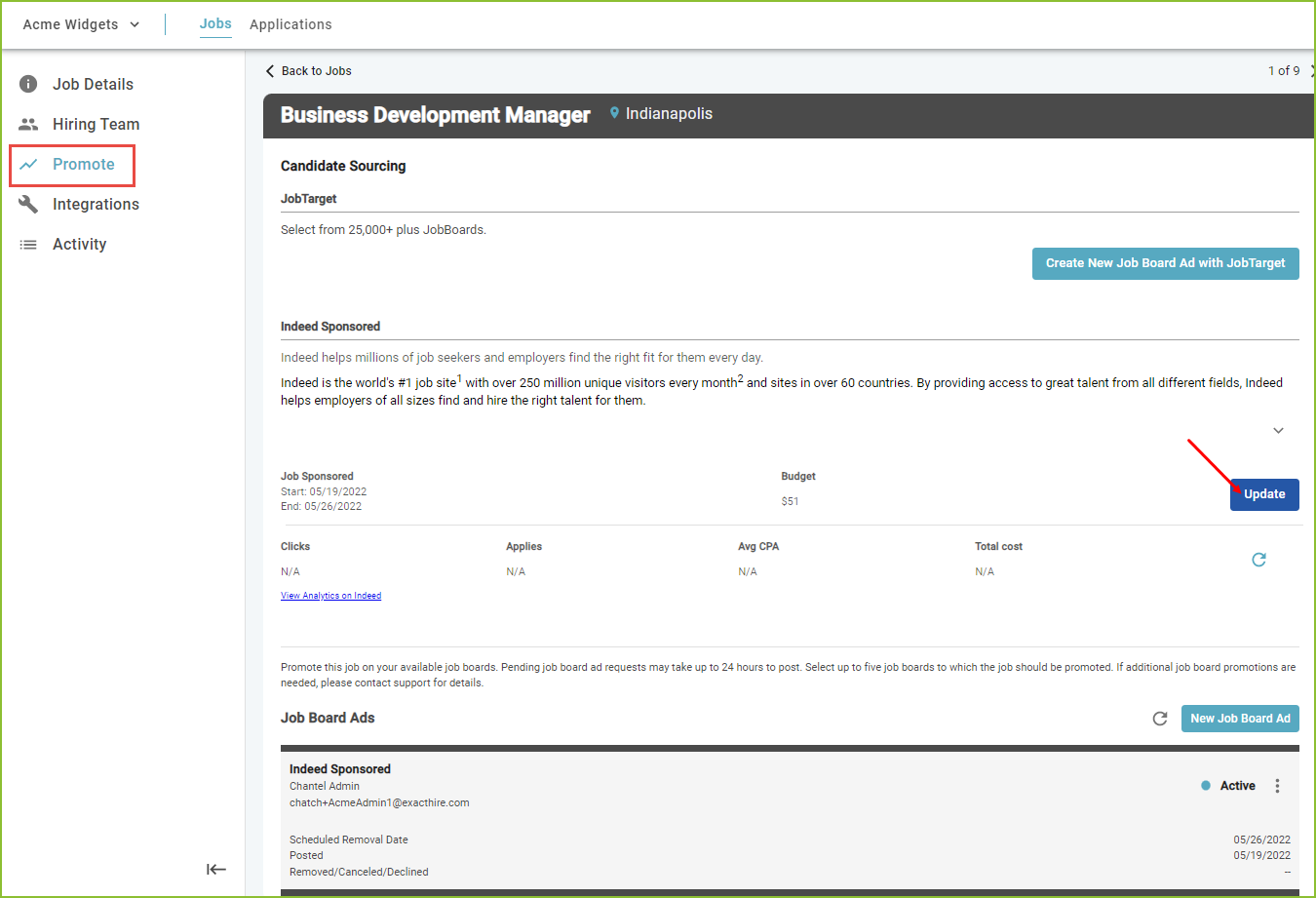
Click on the selected job title. The Job Details tab will open. Use the PROMOTE tab to access the various job ad promote features.
Please note: the job must be in an ACTIVE status in order to use the features on the PROMOTE tab.
-
Use the Sponsor On Indeed to add Indeed Sponsorship to the job.
-
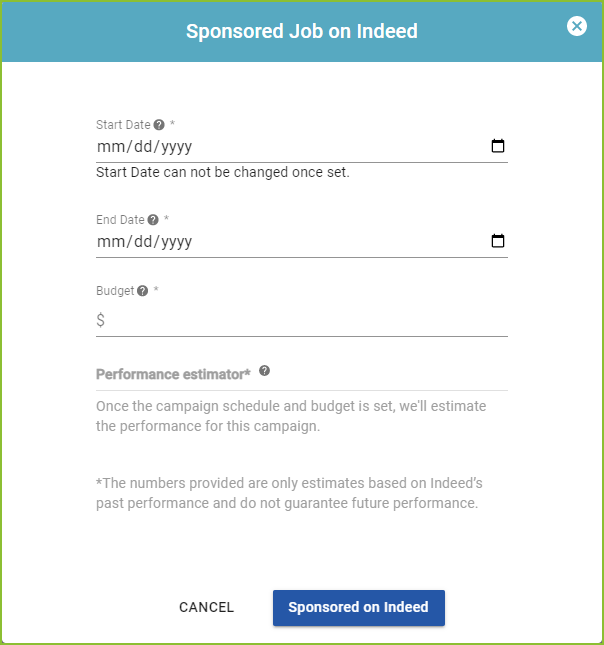
Enter the sponsorship details for Start Date, End Date, and Budget.
-
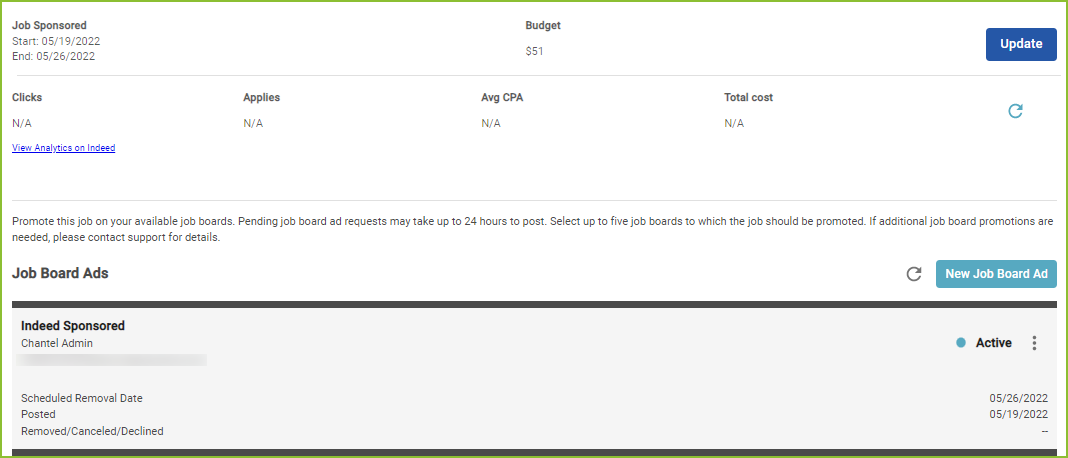
The new Indeed Sponsored campaign information will be visible on the PROMOTE tab.
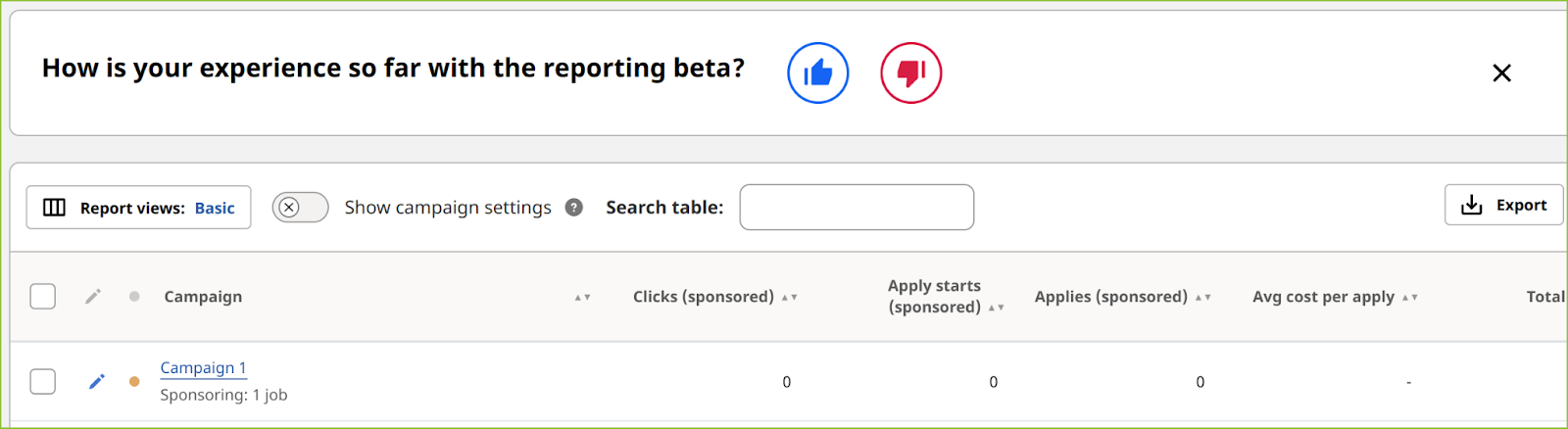
Once a job is sponsored, the organization's Indeed dashboard will also display the newly sponsored job’s campaign.
Update an Indeed Sponsorship Campaign
-
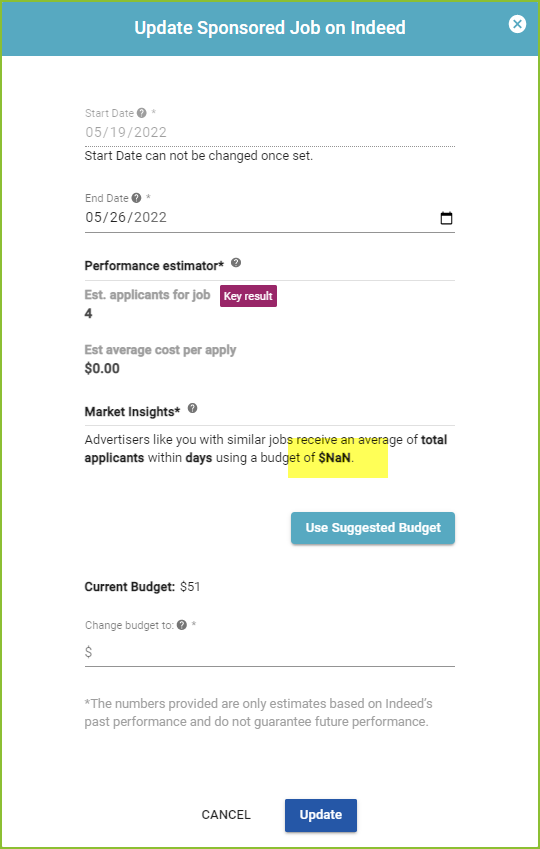
To update an Indeed Sponsored campaign navigate to the PROMOTE tab of the job. Click Update in the Indeed Sponsored area.
-
Adjust the End Date and Budget, click Update.
End an Indeed Sponsorship Campaign
-
To end an Indeed Sponsored campaign early navigate to the PROMOTE tab of the job. Access the More Options menu for the corresponding campaign and select Remove Posting.

Please note: A job may only have one active Indeed sponsored campaign at a time. After a campaign ends a new one may be created.
Still need help? Submit a support request and our team will get back to you.