ExactHire Support

Applicant: Tips for Applying for a Job using Phone Number

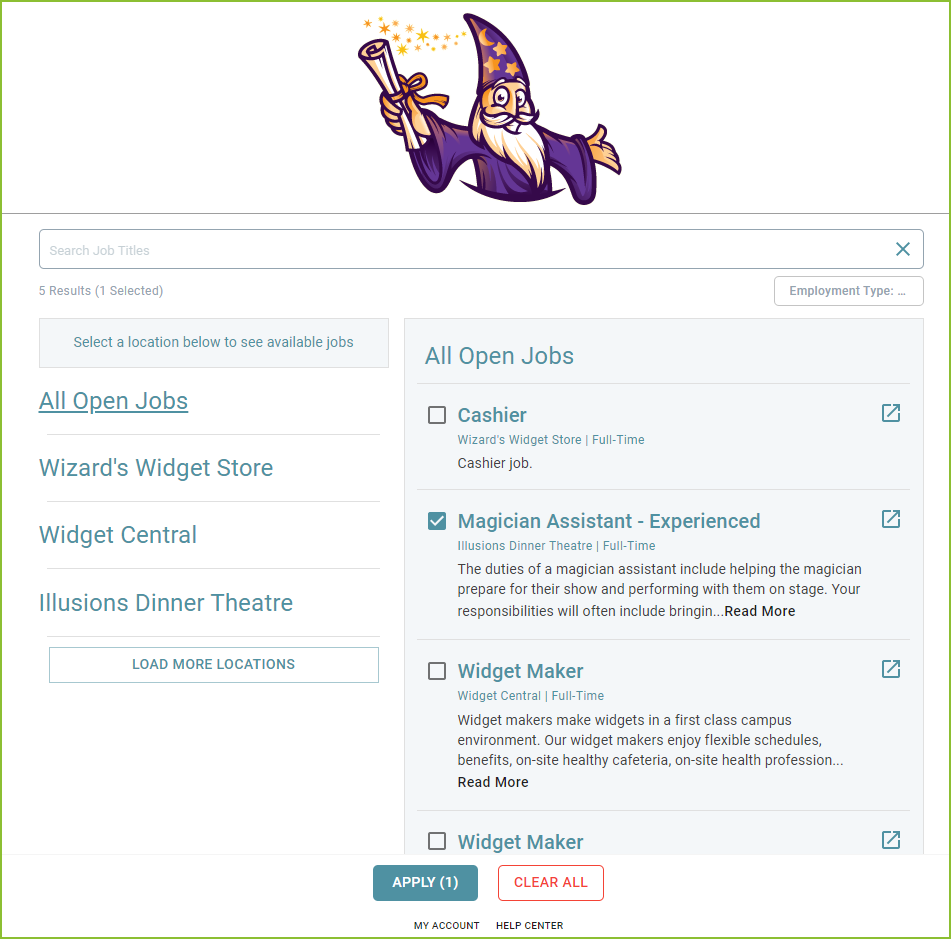
To apply for a job, use the various filter options to sort through the posted jobs by job title, employment type, and/or location.

Applicants may select multiple jobs at multiple locations. 

  • tips-applying-for-a-job-using-phone-number-01.png After selecting one or more jobs, click APPLY to continue to the application.

  • Enter the mobile phone number and click Continue. An email address may be provided but is not required. A phone number is required. 

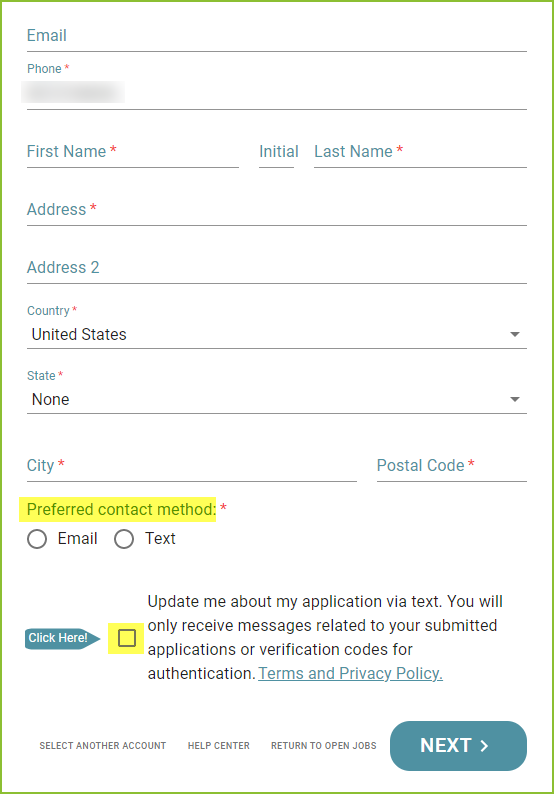
  • tips-applying-for-a-job-using-phone-number-02.png Enter the additional required information to create an applicant account. Indicate preferred contact method and agree to receive communications through SMS Text. Click NEXT.

  • tips-applying-for-a-job-using-phone-number-03.png On this page, there are also options to select another account to apply, request help, or return to the open jobs list.

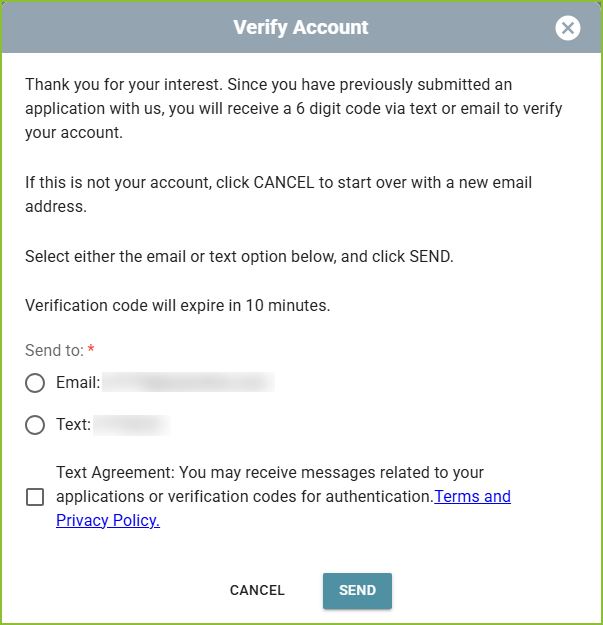
  • tips-applying-for-a-job-using-phone-number-04.png To apply for additional positions, after the original application has been submitted, enter the mobile phone number and click CONTINUE. The Verify Account information will appear. Select to receive a verification code through text. Click SEND.

tips-applying-for-a-job-using-phone-number-05.png
  • Enter the verification code that you received by text and click VERIFY.
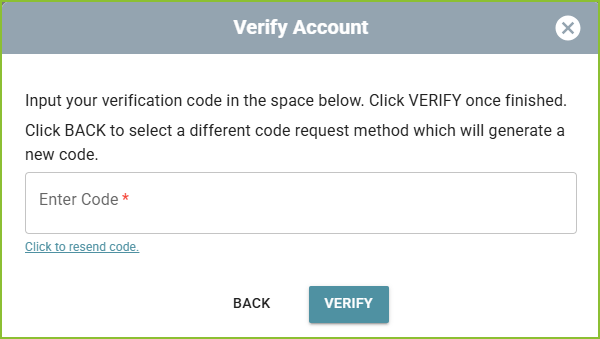
tips-applying-for-a-job-using-phone-number-06.png
  • The application will now open on screen.

To update a previously submitted application, simply apply for the desired job again. The updated information will be submitted to the company.


Still need help? Submit a support request and our team will get back to you.