
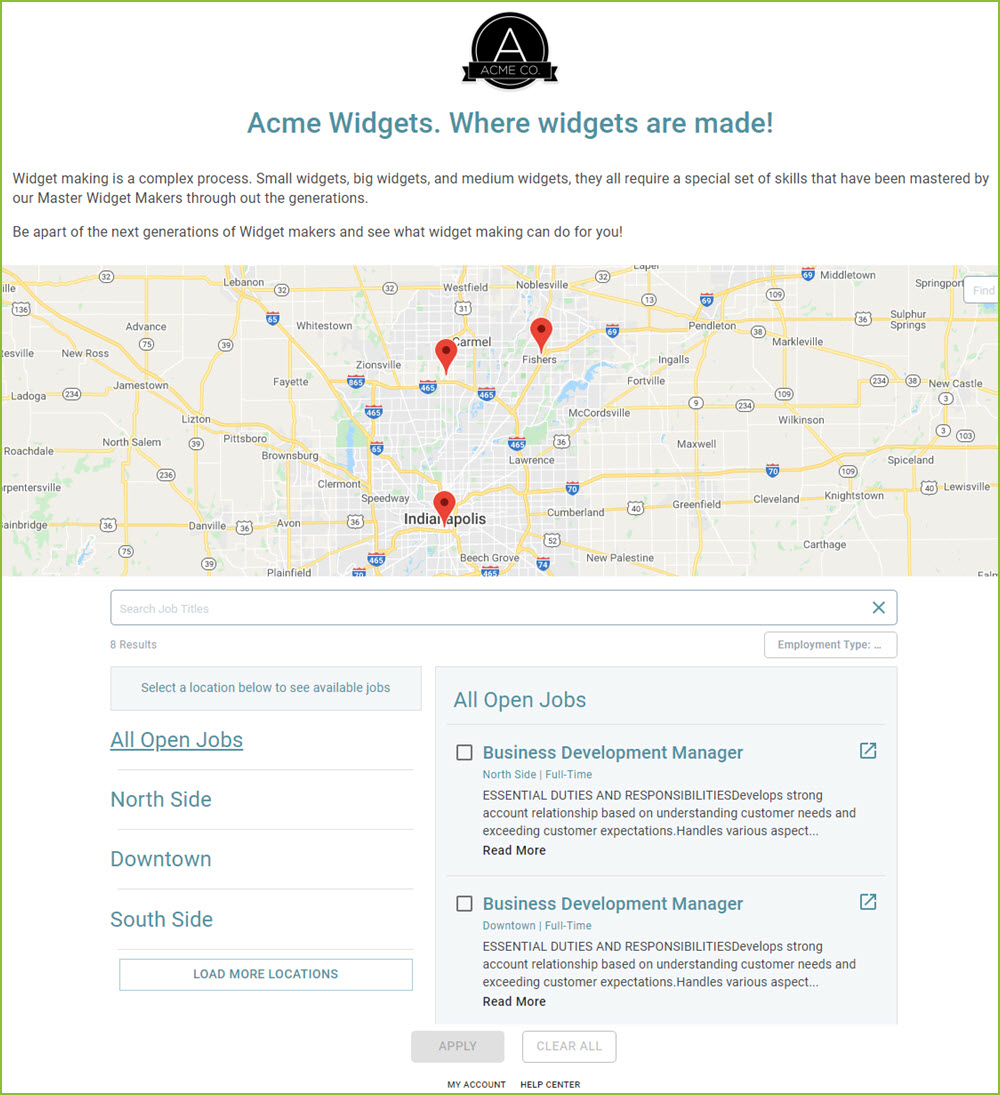
To apply for a job, use the various filter options to sort through the posted jobs by job title, employment type, and/or location.
You can select multiple jobs at multiple locations if you wish.
-
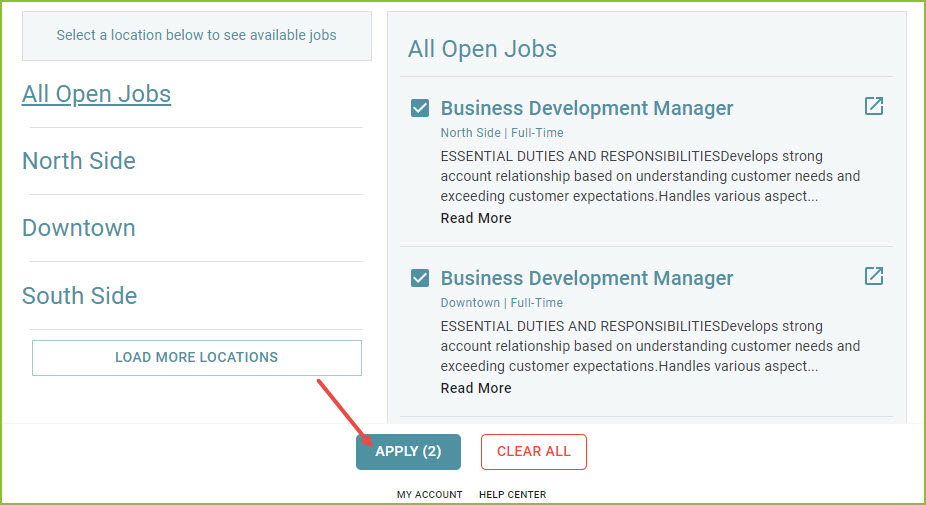
Select one or more job(s) and continue forward by clicking the Apply button.
-
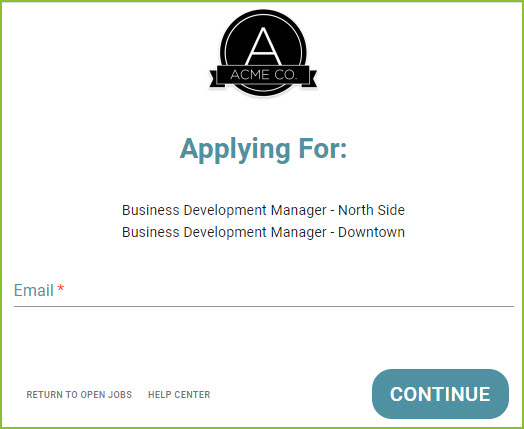
Enter your email address and click Continue.
-
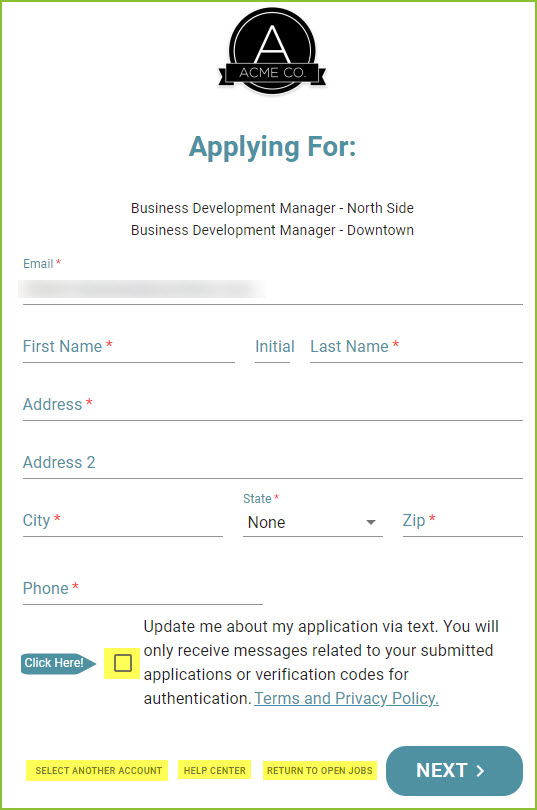
Enter the requested contact information. The following fields are required:
-
Email
-
First Name
-
Last Name
-
Address
-
City
-
State
-
Zip
-
Phone
-
-
Check to agree to receive text messages about your submitted application(s), if desired.
-
On this page, there are also options to use a different account to apply (email address), request help, or return to the open jobs list.
-
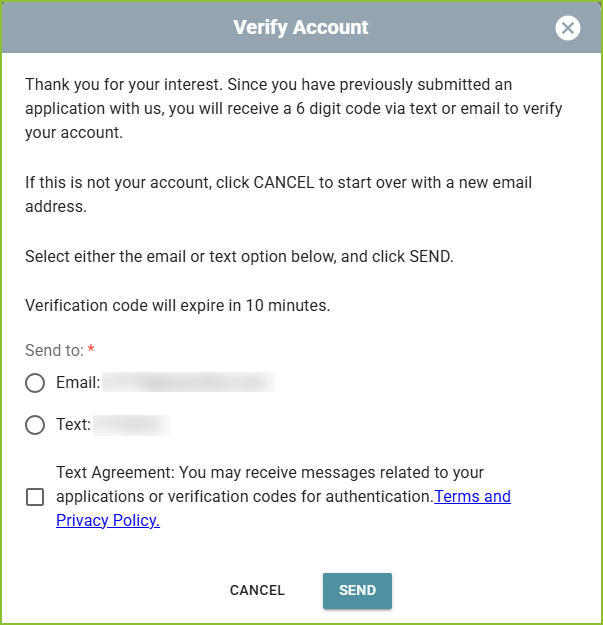
To apply for additional positions, after the original application has been submitted, enter the email address and click CONTINUE. The Verify Account information will appear. Select to receive a verification code through email or text. Click SEND.
-
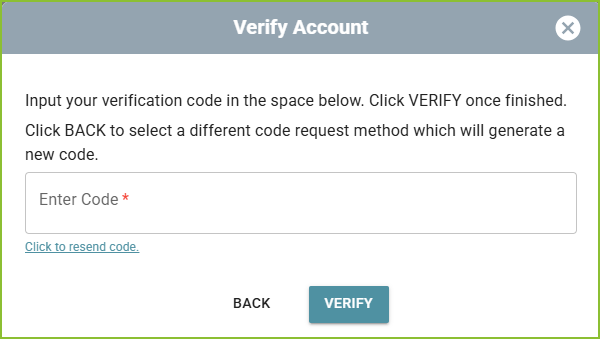
Enter the verification code that you received by text or email and click VERIFY.
-
The application will now open on screen.
To update a previously submitted application, simply apply for the desired job again. The updated information will be submitted to the company.
Still need help? Submit a support request and our team will get back to you.