
Users have the ability to customize the Application Stages available within the ExactHire ATS.
-
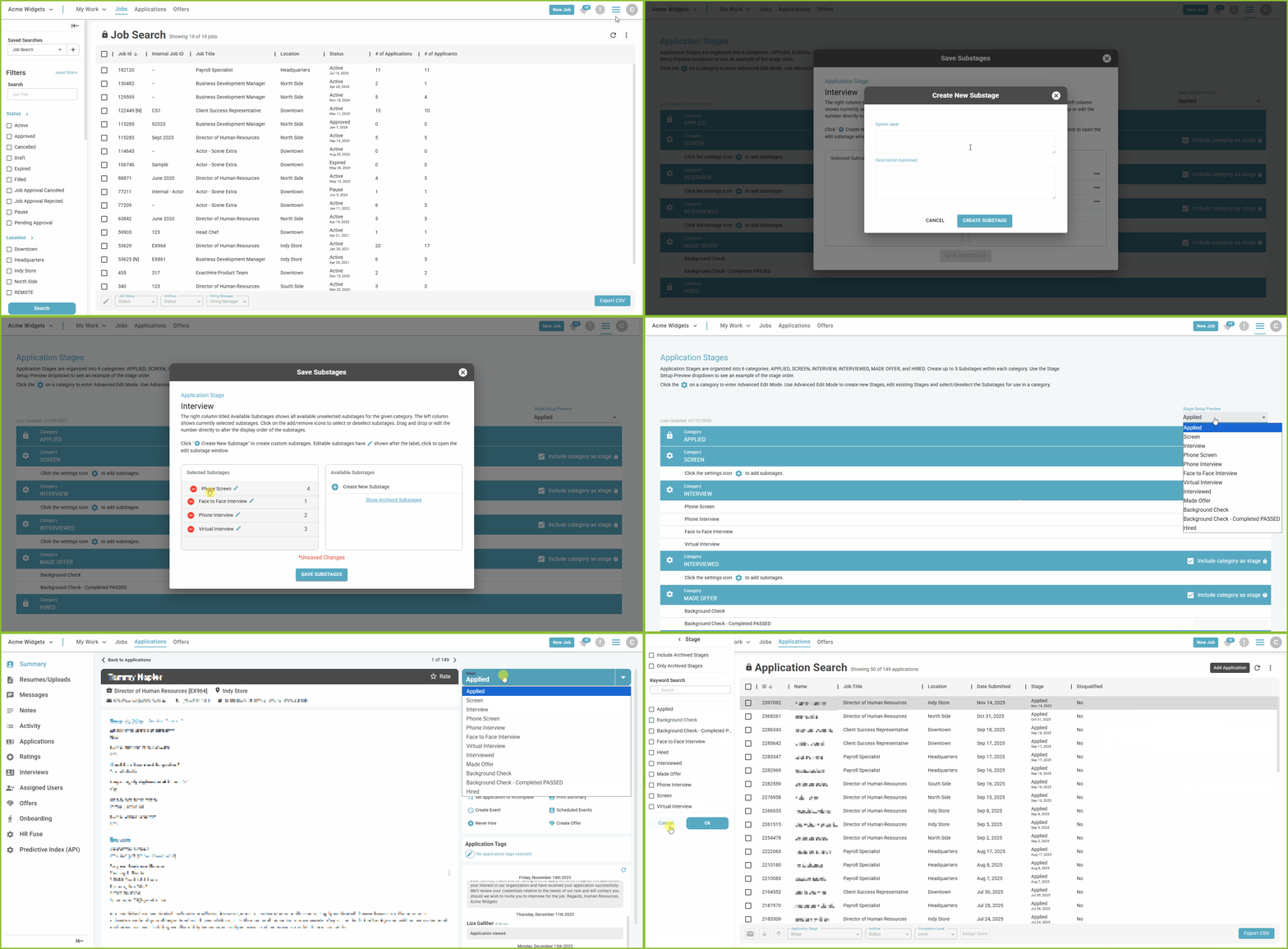
Begin in the Settings area.

-
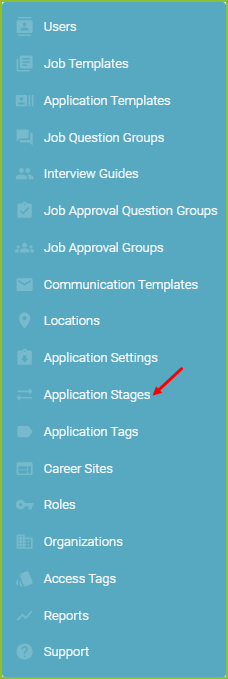
Click on Application Stages.
-
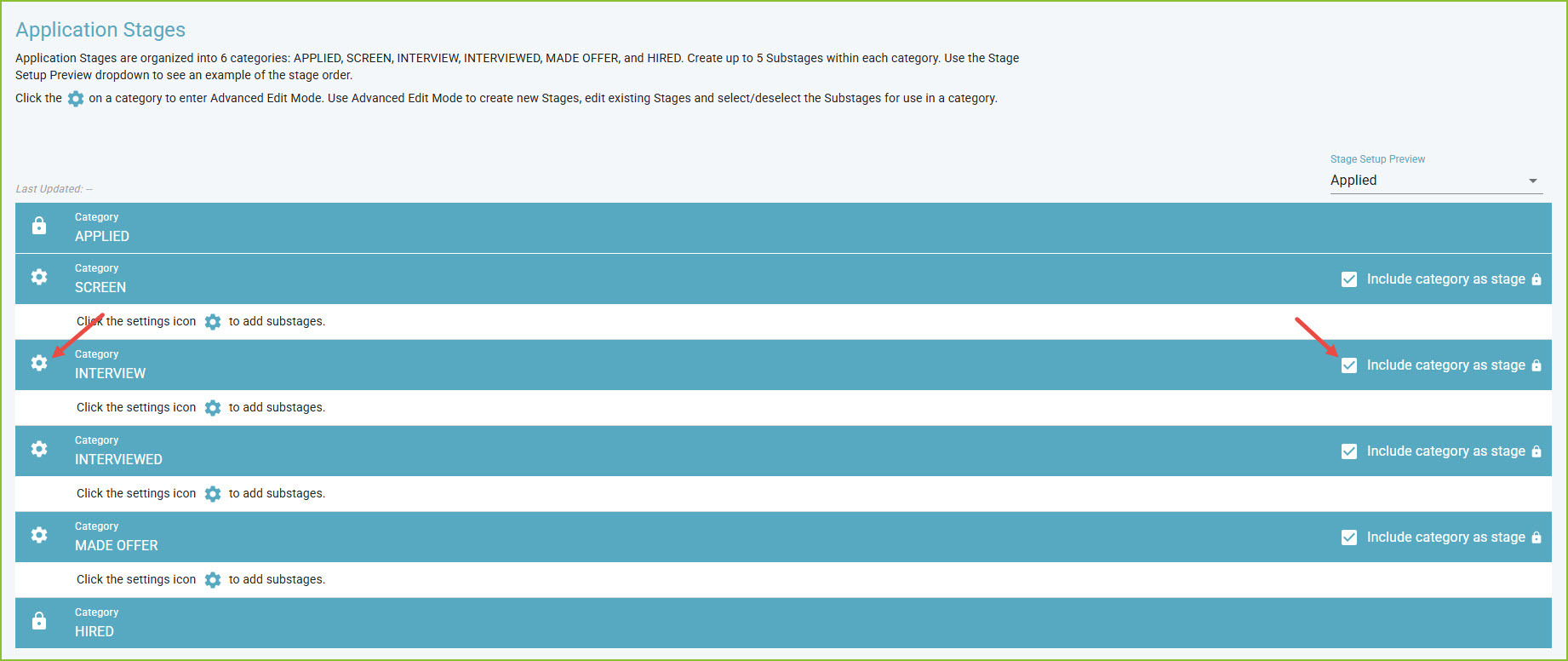
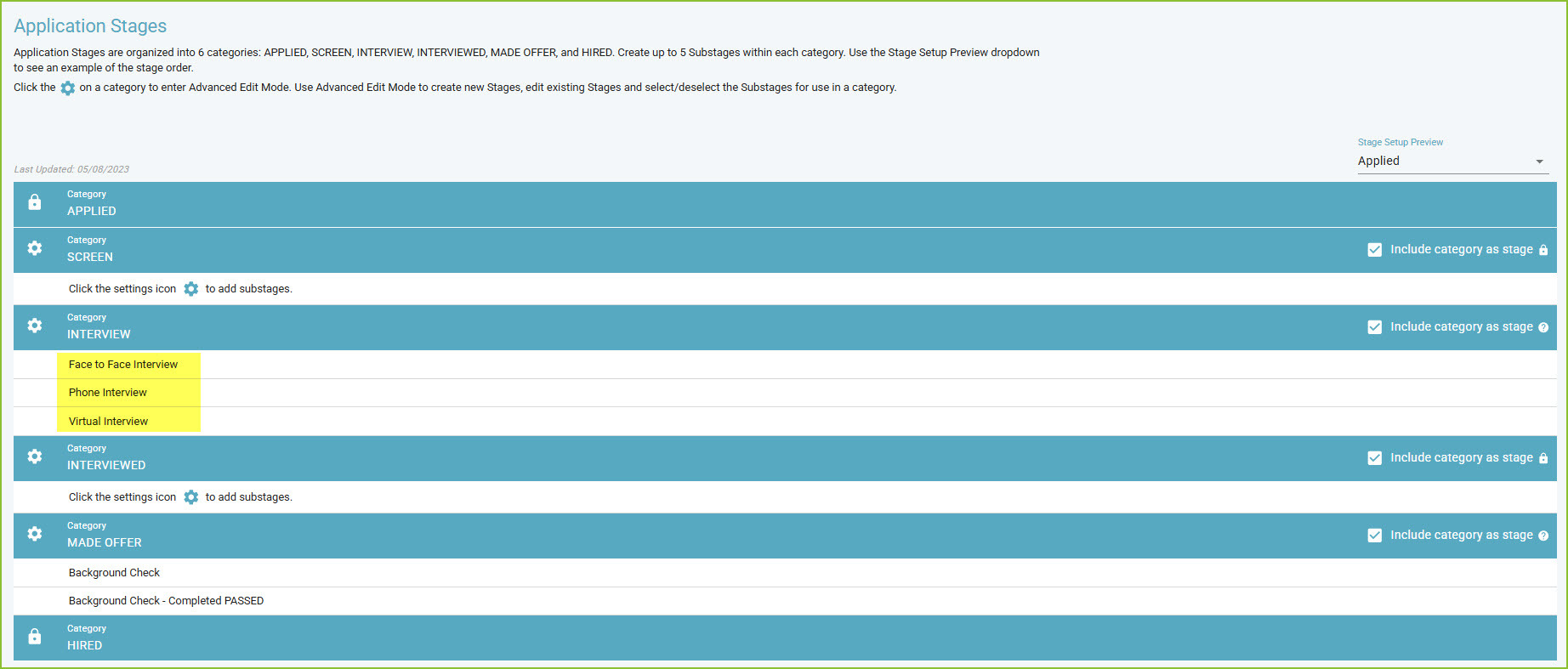
Application Stages are organized into 6 categories:
-
Applied*
-
Screen
-
Interview
-
Interviewed
-
Made Offer
-
Hired*
*These stages are locked within the system.
-
-
The User may create up to 8 Substages within each unlocked category.
-
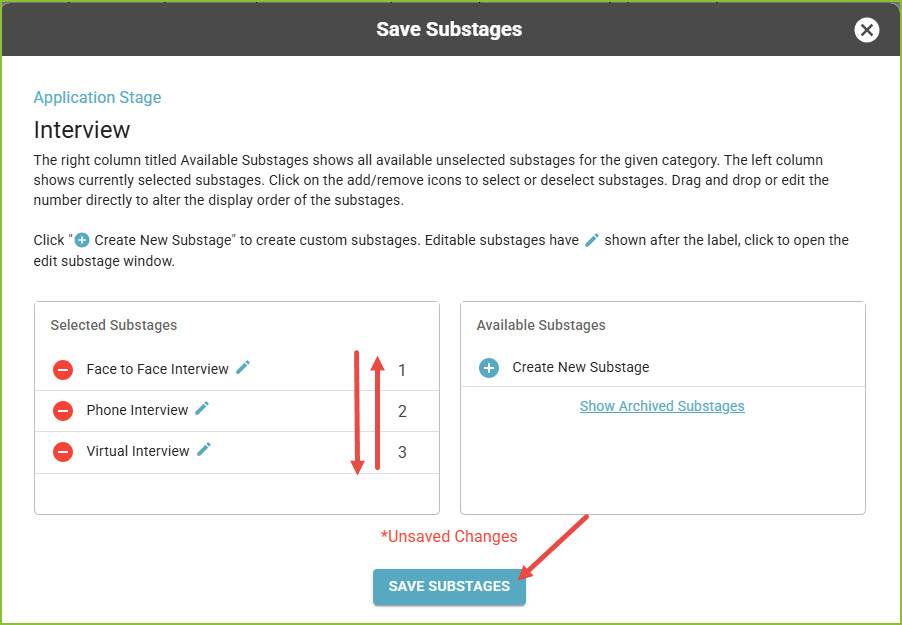
Click the Cog icon on the left to enter the Advanced Edit Mode to create new Substages, edit existing Substages, and select/deselect Substages for use in each stage category.
-
Select/deselect to include/remove the Category Name as a stage option.
-
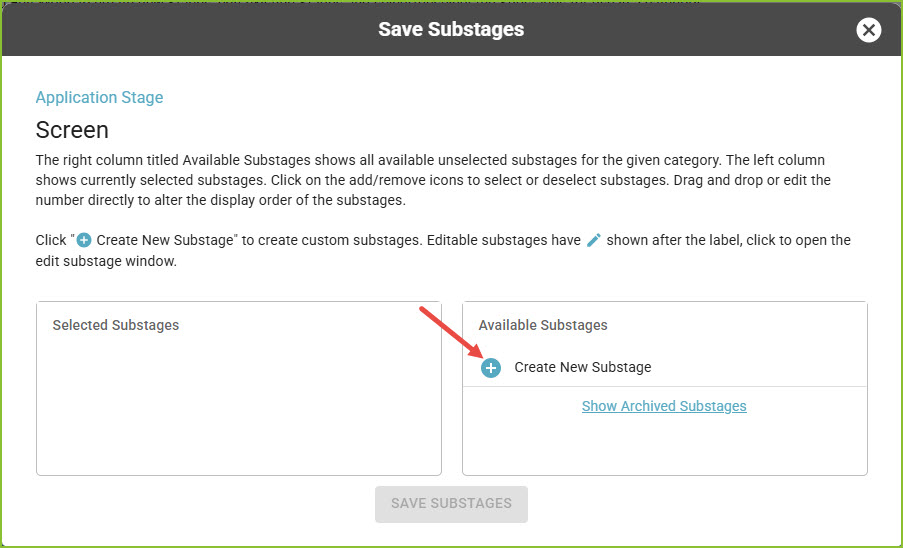
Within Advanced Edit Mode, use the + to Create New Substage(s).
-
Drag and drop to organize the new Substages into the proper order within the Category.
-
Click SAVE SUBSTAGES to save the changes.
-
-
The newly created Substages will be visible in the Application Stages view.
-
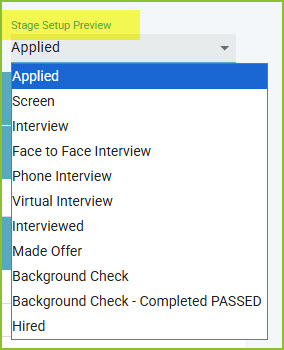
Using the Stage Setup Preview dropdown to see an example of the stage order.
-
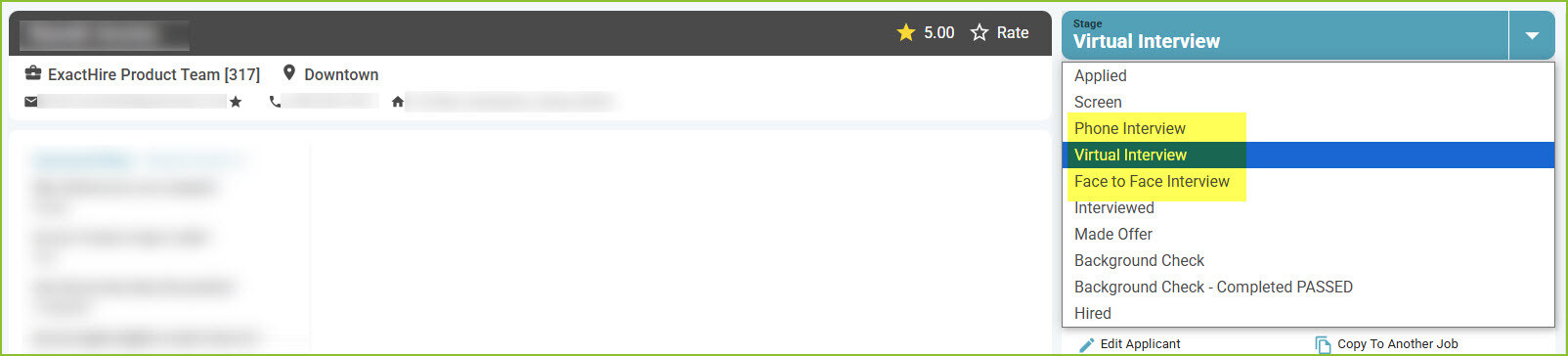
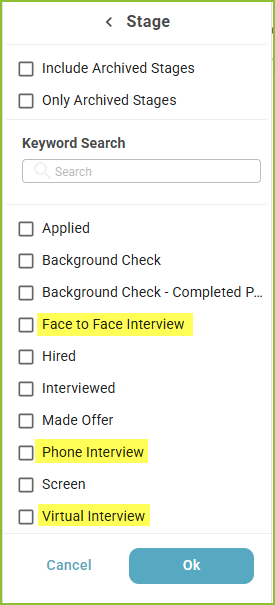
The newly modified Application Stages will be visible in the Applicant Record as well as in all Stage filters.
Still need help? Submit a support request and our team will get back to you.