
Administrator Users have the ability to create additional user access for other team members.
-
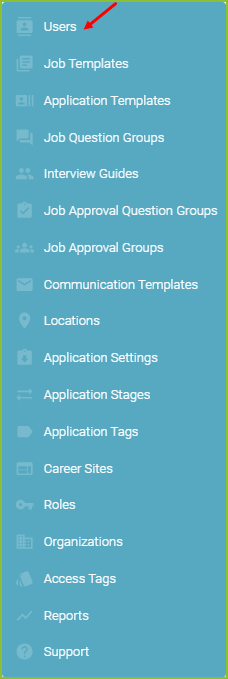
To create a new user begin in the Settings area.

-
Click on Users.
-
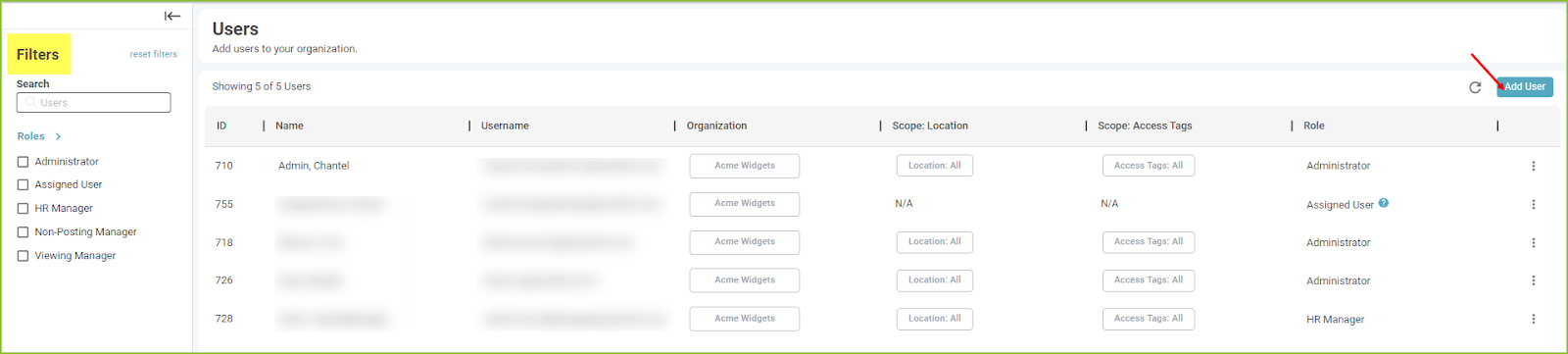
Use the Filters to search for specific users and/or filter to users of specific Role type.
-
In the Users area click Add User.
-
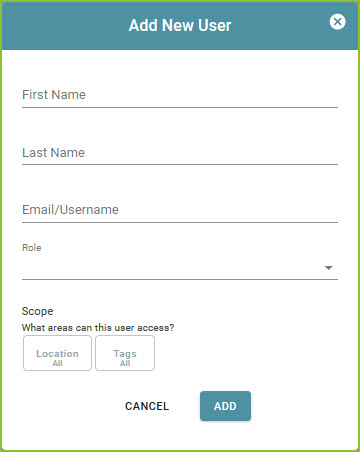
Enter the new user’s information.
-
First Name
-
Last Name
-
Email Address - This should be the User’s work email address.
-
Select the Role - Roles may be predefined by the system or created specifically to fit an organization’s needs.
-
Scope - These are the areas a user can access based on Location and Access Tag assignment.
-
-
Click ADD.
-
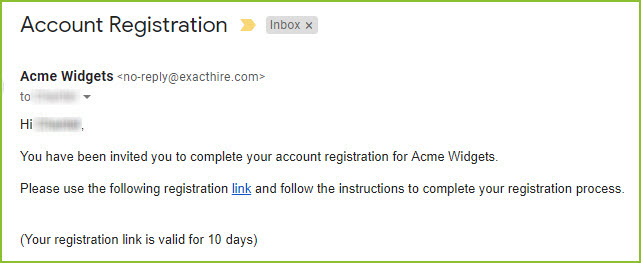
An email will now be sent to the new user prompting them to complete their registration.

-
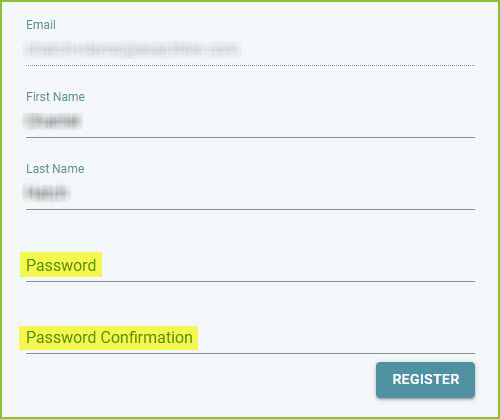
The new user will click the LINK in the email to complete the account registration. The new user will enter their desired password, confirm the entered password, and click REGISTER.
-
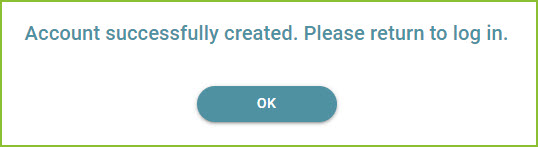
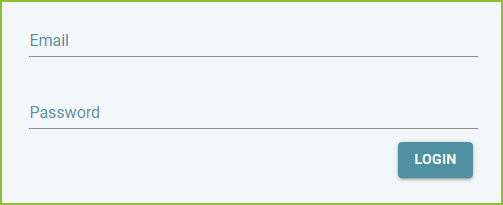
The new user will receive confirmation on screen that the account was created and be prompted to login.
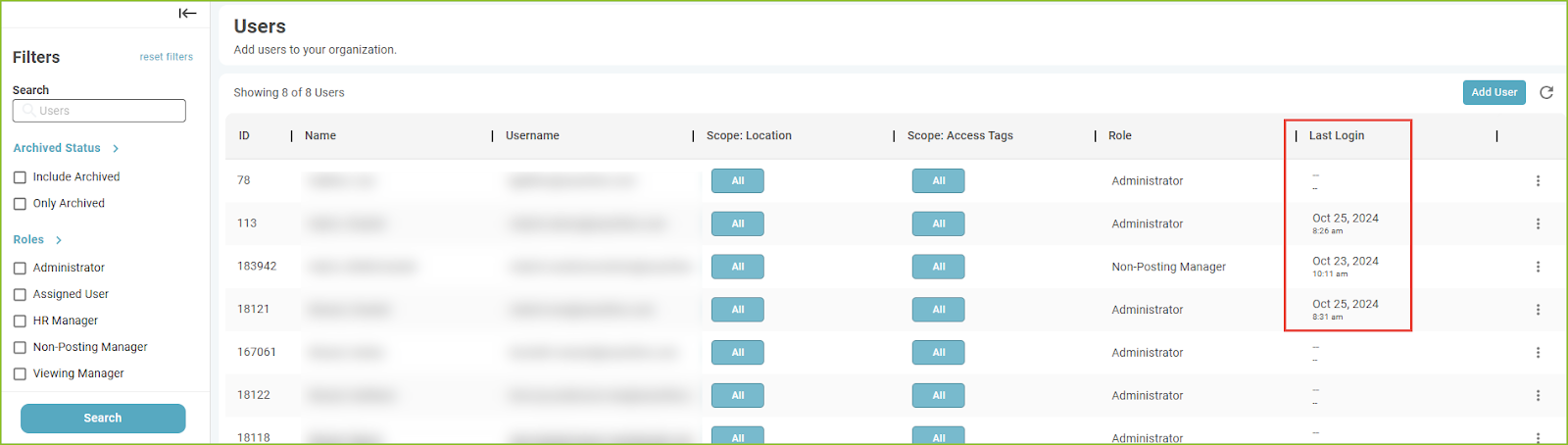
Last User Login Tracking
The last user login date/time is visible in the Users area.
Still need help? Submit a support request and our team will get back to you.