
Application stages can be made individually or by performing a mass change.
Individual Application Stage Update
-
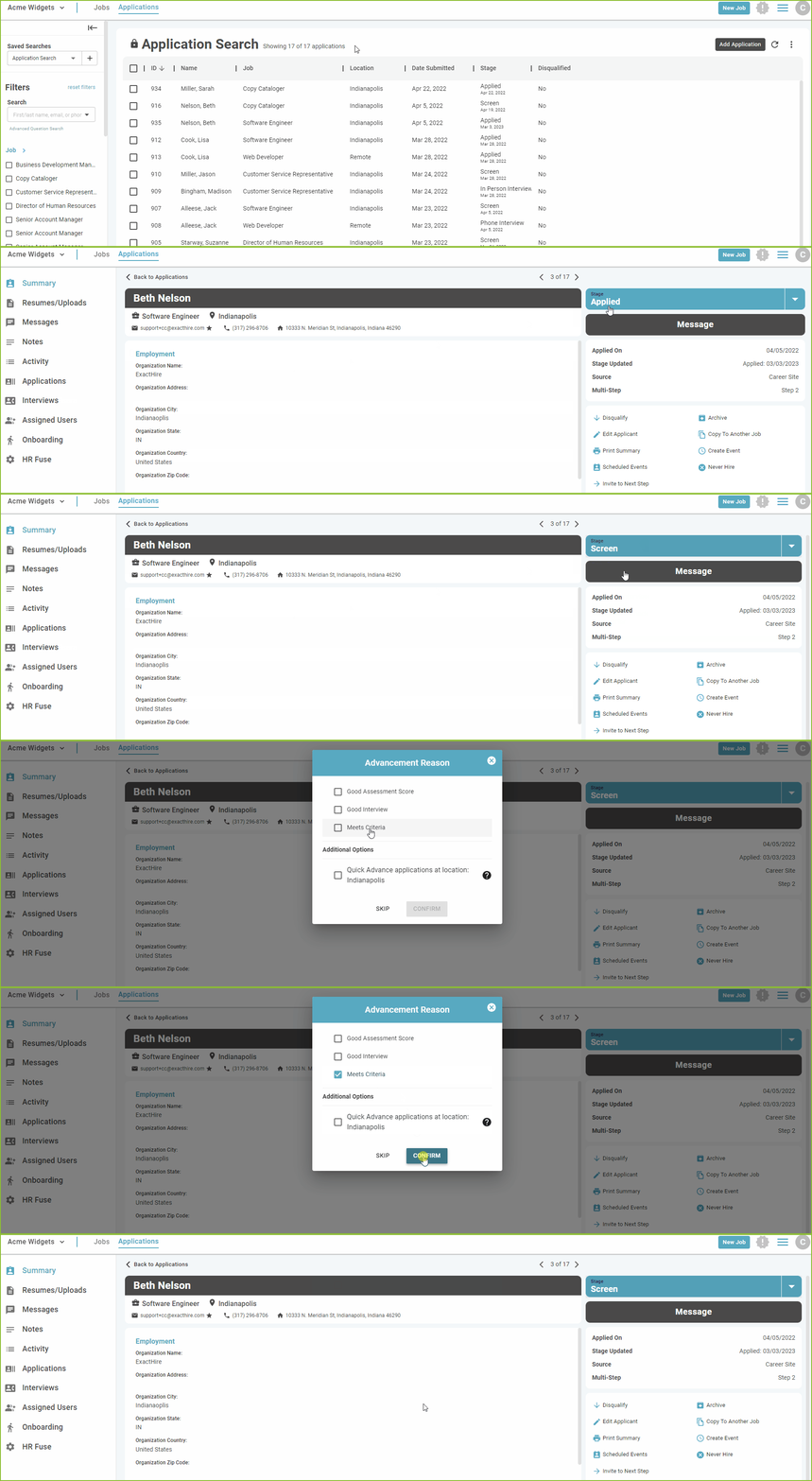
Begin by selecting the applicant using the filter options available. To open the Application Detail, click on the applicant name.
-
Change the Application Stage using the Stage drop down menu. The Advancement Reason pop up box will appear. Select an Advancement Reason and click CONFIRM.

-
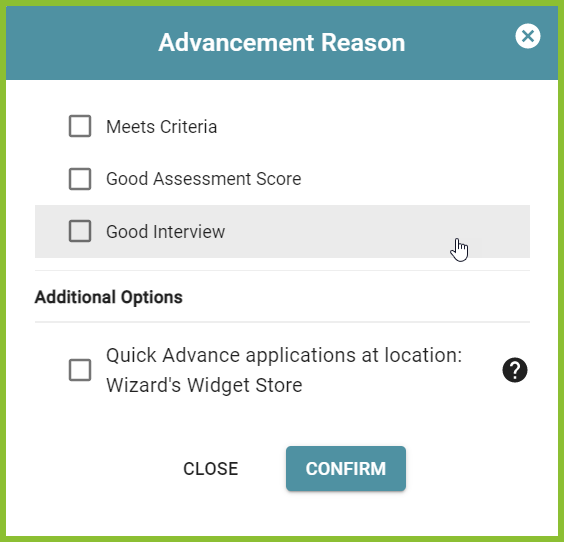
Select an Advancement Reason and click CONFIRM.
-
The Quick Advance feature may be used to change the status of all applications submitted by the applicant for the indicated location only.
Mass Application Stage Update
-
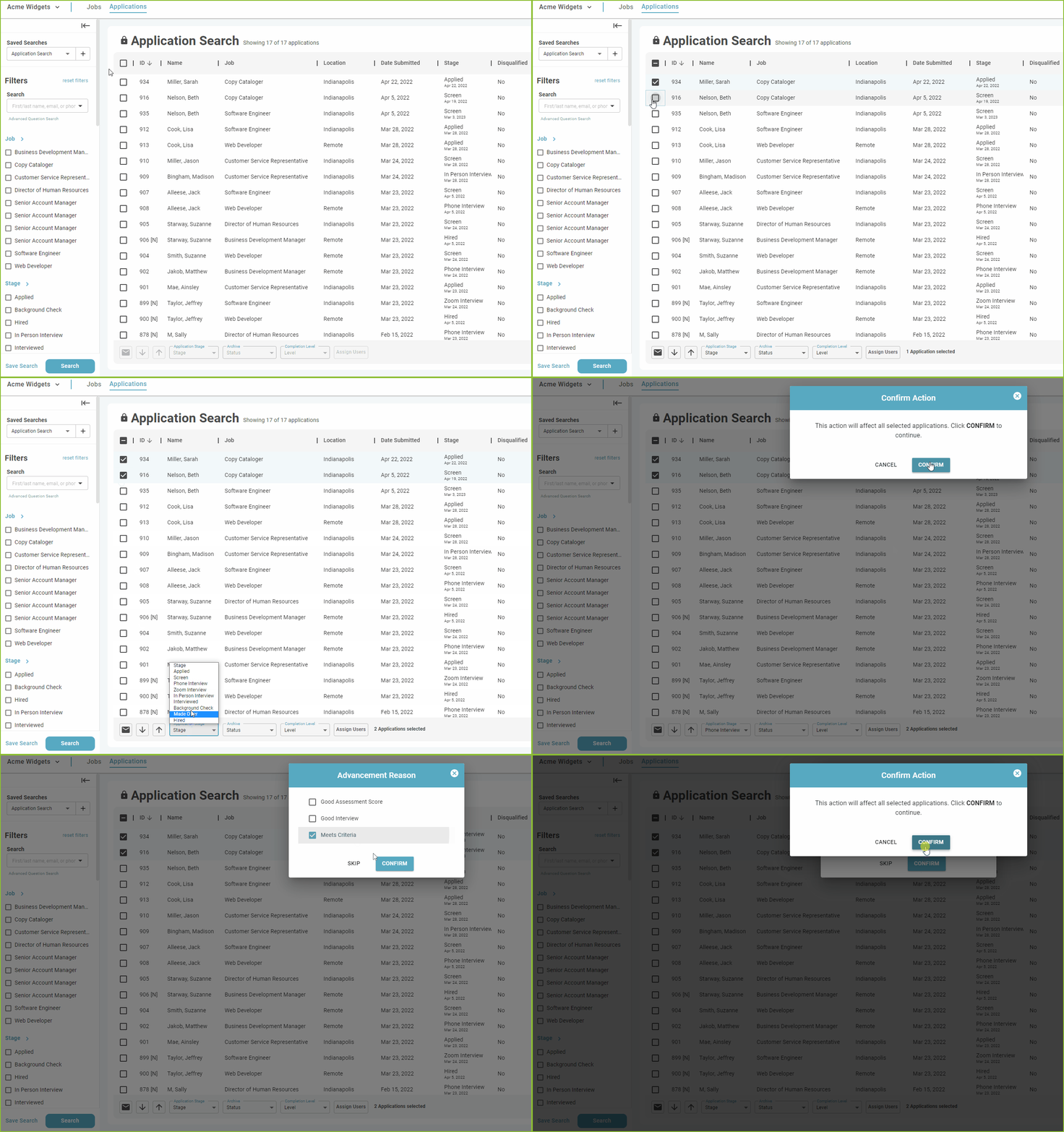
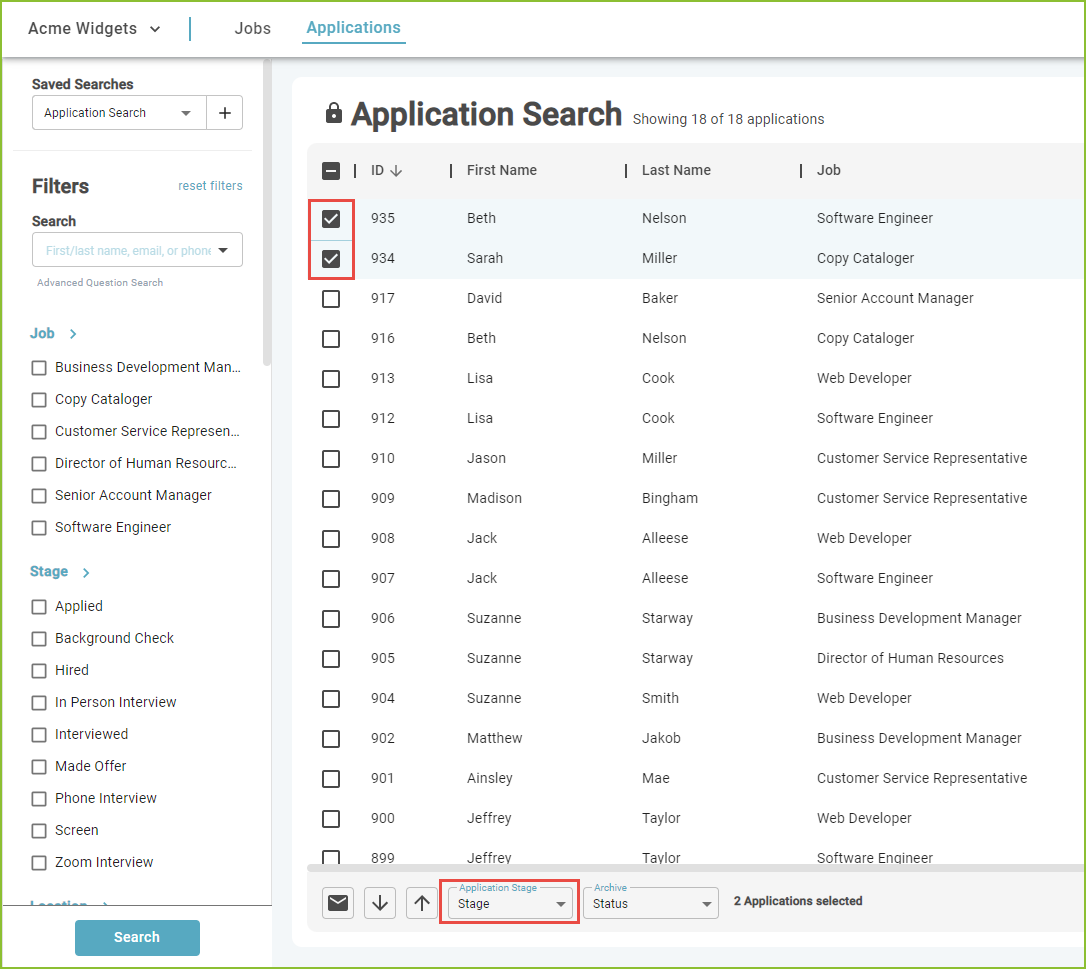
To make a mass change to the Application Stage select the applicants by checking the box next to the applicant name to activate the mass action buttons.
-
Use the Application Stage menu to select a new application stage for the selected applications.
-
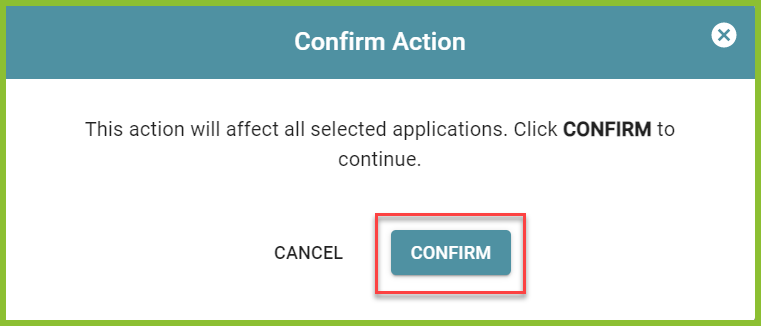
A pop-up box will appear to confirm the selected changes. No reasons can be entered and the Quick Advance option is not available.
Still need help? Submit a support request and our team will get back to you.