
Users with the proper permissions have the ability to Copy a Job to create a new Job.
-
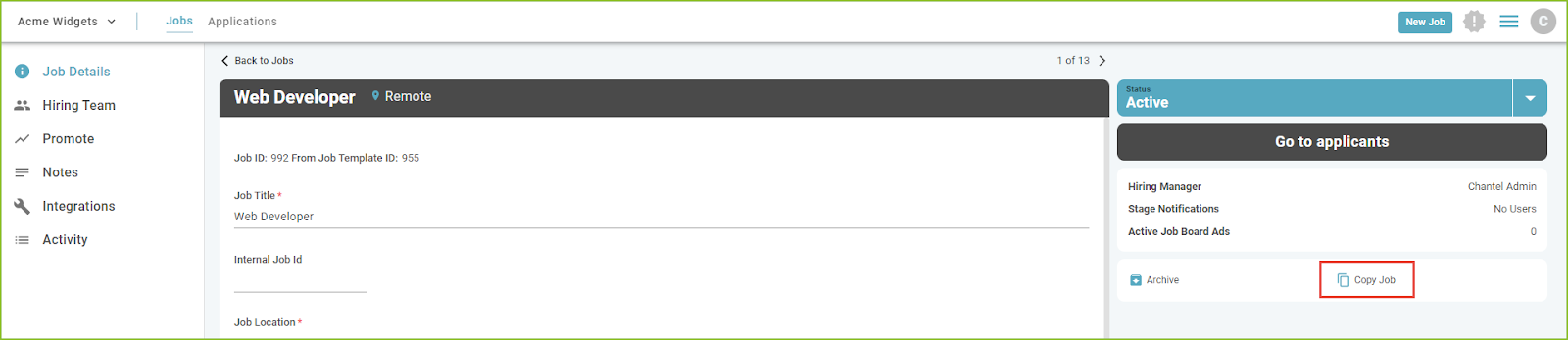
To copy a job, begin by locating the original job in the JOBS view.
-
Open the Job Details by clicking on the Job Title in the JOBS view.
-
Click COPY JOB.
-
Click CONFIRM to continue with the copy of the job.

-
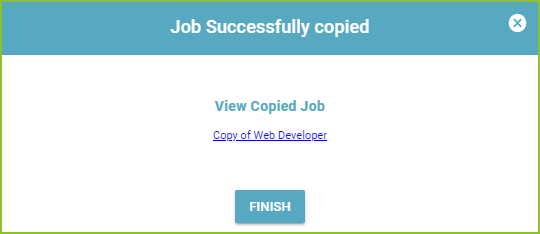
Click the provided link to open the newly created job and click FINISH to complete the copy of the job.
-
A new job will be created with the title of “Copy of [original job title]”.
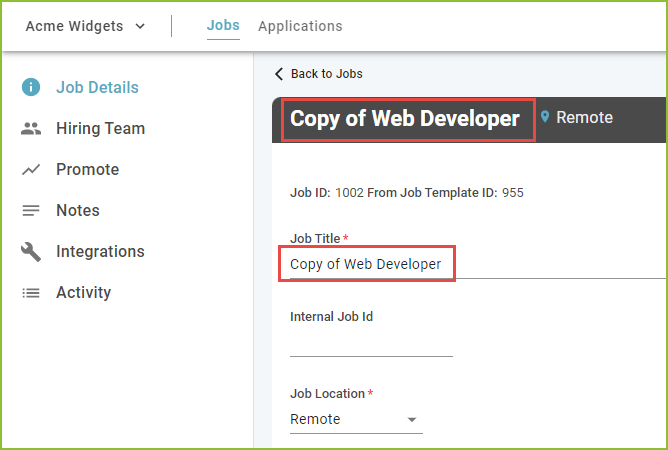
The following fields will be copied to the new job:
-
Job Title with the addition of “Copy of”.
-
Internal Job Id
-
Location
-
Job Category
-
EEO-1 Job Category
-
Employment Type
-
Job Description
-
Benefits
-
Compensation Type
-
Min and Max Compensation
-
Job Type
-
Exempt Status
-
Application Templates
-
Job Questions Groups
-
Access Tags
-
Hiring Team
-
Any Job Integration settings
The following fields will not be copied to the new job:
-
Job Status - The new Job’s Status will be Draft.
-
Promote - New job board selections will need to be created.
-
Notes - New notes will need to be created.
-
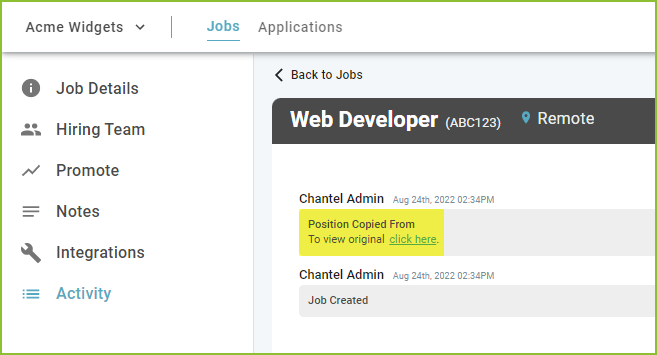
Job Activity - Activity will track with information specific to the newly created job and provide a quick link to the original job.
-
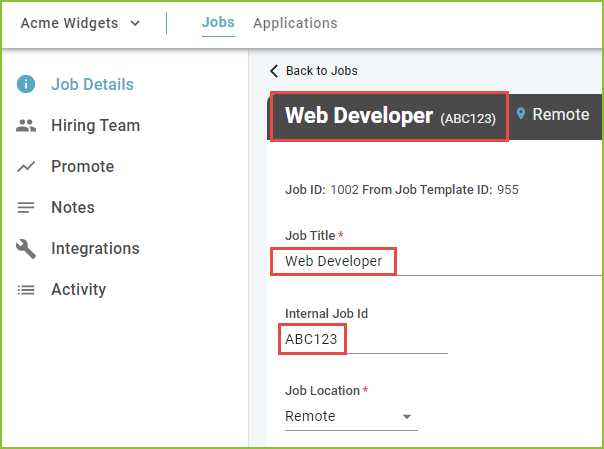
Edit the newly created job by altering the Job Title, Internal Job Id, job description, etc. Click SAVE.
Still need help? Submit a support request and our team will get back to you.