
When creating or editing a Job and/or a Job Template, an image can be inserted in the Description area.
-
Place the cursor at the location where the image should be inserted.
-
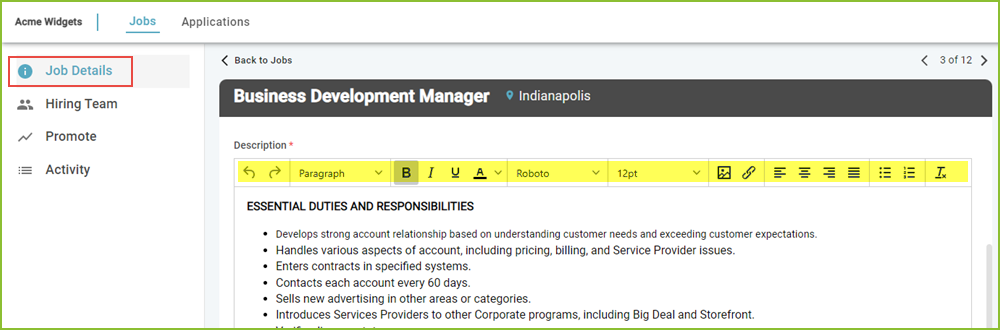
Use the WYSIWYG (What You See Is What You Get) editor to access the formatting tools to select the Insert/Edit Image option.

-
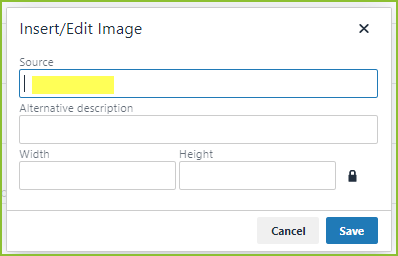
In the Insert/Edit Image dialog box, add the source URL, the image description, and control the width and height of the image.
Please note: Images must be publicly available through a URL. Private images will not function properly in this tool.
-
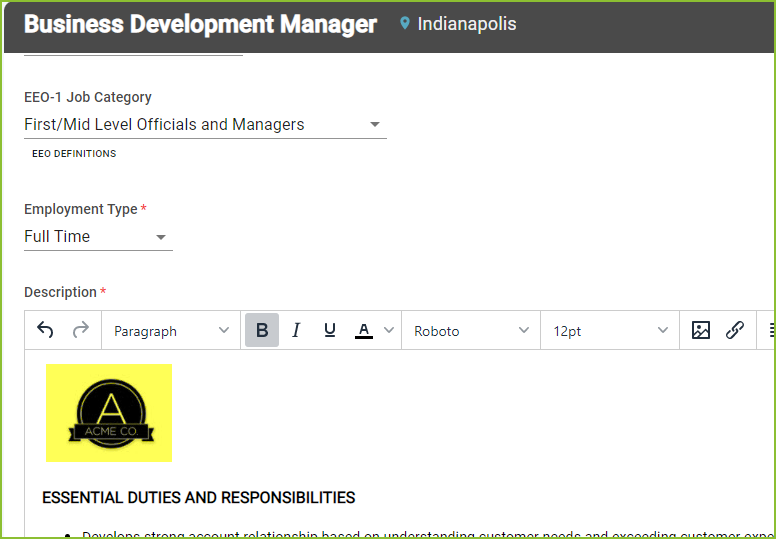
Click SAVE to insert the image in the Description area.
-
To shift alignment of the inserted image select the image and then select the desired alignment.

Still need help? Submit a support request and our team will get back to you.